

WooCommerce website maintenance is the scheduled process of updating core files, testing payment gateways, checking plugin compatibility, and monitoring uptime. A WooCommerce store left without maintenance loses revenue three ways. Failed checkouts, security breaches, and slow page speeds push buyers to competitors. This guide covers every WooCommerce store maintenance task by frequency, with specific steps most store owners never run.
Why WooCommerce Website Maintenance Affects Store Revenue
WooCommerce stores face a higher maintenance burden than standard WordPress sites. Every plugin added for shipping, payments, or inventory creates a new compatibility risk. Every order creates database rows that slow queries over time. Every plugin update can break a checkout flow without showing an error.
The revenue impact of skipping WooCommerce website maintenance is direct:
- A page load rising from 1 to 3 seconds raises cart abandonment probability by 32%
- Failed payment gateway API keys block all transactions silently
- Outdated WooCommerce plugins are the entry point for 90% of WooCommerce-specific exploits
- A one-hour site downtime on a store doing $5,000 per day costs $208 in losing sales
Professional e-commerce website maintenance services run these checks on a fixed schedule. What website maintenance includes for WooCommerce goes beyond plugin updates and covers every layer of store health.
WooCommerce Website Maintenance Checklist by Frequency
A complete WooCommerce maintenance checklist splits tasks into four tiers. Daily checks take 10 minutes. Weekly tasks take 30 to 60 minutes. Monthly tasks take 2 to 3 hours. Quarterly tasks take 1 to 2 hours.
| Frequency | Task | Revenue Protection Impact |
|---|---|---|
| Daily | Check failed and on-hold orders | Catches failed payments before customers abandon |
| Daily | Confirm latest backup completed | Prevents data loss from site downtime |
| Weekly | Update plugins and WooCommerce core on staging | Closes plugin compatibility gaps and security holes |
| Weekly | Test checkout and payment gateway on live site | Confirms real transactions process correctly |
| Monthly | Database cleanup (transients, revisions, sessions) | Keeps query speed fast and reduces database bloat |
| Monthly | Core Web Vitals check on product and checkout pages | Protects rankings and checkout optimization |
| Monthly | Security scan and login audit | Detects intrusion attempts and brute force activity |
| Monthly | WooCommerce error log review | Surfaces hidden plugin conflicts and fatal errors |
| Quarterly | Full plugin audit and GDPR data retention review | Reduces attack surface and meets compliance requirements |
Payment Security Maintenance for WooCommerce
Payment security is the highest-stakes part of WooCommerce website maintenance. A checkout failure or a compromised payment form costs more than any other store issue.
Run these payment security checks monthly:
- Test every active payment gateway using a live test transaction, not just a sandbox test. Staging does not replicate real payment processor connections.
- Confirm SSL is active on all checkout pages. A mixed-content warning on a checkout page breaks the padlock icon and reduces conversions. Use SSL certificate management to track certificate expiry dates.
- Review order notification emails. Test new order, payment failed, and refunded emails from WooCommerce > Settings > Emails.
- Check payment gateway API key expiry. Stripe, PayPal, and Square rotate API keys on a schedule. An expired key fails silently and blocks all transactions.
- Verify no payment form submits to a non-HTTPS endpoint. A form action pointing to HTTP exposes card data in transit.
- Review WooCommerce REST API keys. Go to WooCommerce > Settings > Advanced > REST API. Remove any key not actively used by an integration.
PCI Compliance and Admin Access Security
WooCommerce stores that accept card payments must meet PCI compliance standards. Most stores use hosted gateways (Stripe, PayPal) that handle card data off-site. This shifts most PCI responsibility to the gateway, but 4 admin-level tasks remain for pci compliance.
- Enable two-factor authentication (2FA) on every WordPress admin and shop manager account. Use WP 2FA or Google Authenticator.
- Limit admin access by role. Shop managers should not hold Administrator-level access. Use WooCommerce roles to restrict order deletion and refund approval.
- Set strong password requirements for all accounts with checkout or order access. WordPress does not enforce this by default.
- Rotate admin credentials after any staff departure. Former employees with stored credentials are a direct breach risk.
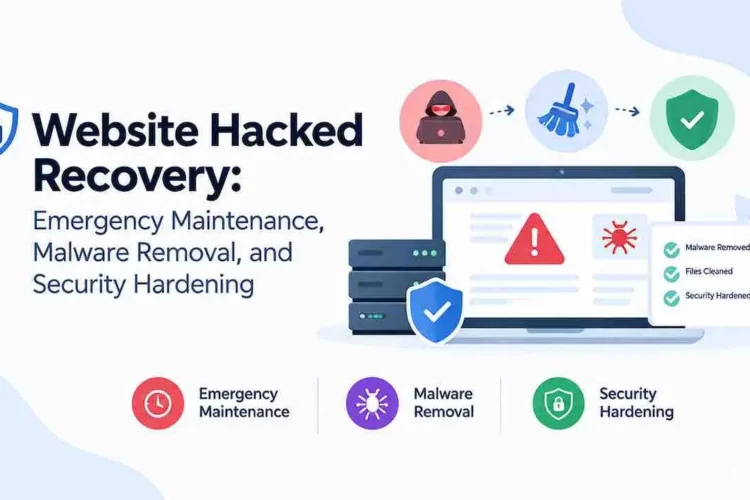
Full website security maintenance covers firewall rules, malware scanning, and server-level hardening beyond the WooCommerce admin layer.
Plugin Compatibility Testing for WooCommerce
Plugin compatibility conflicts cause most WooCommerce checkout failures. A single plugin update can break the add-to-cart button or disable a shipping calculator. It can also prevent orders from completing without any visible error to the store owner.
The correct plugin update workflow for WooCommerce website maintenance:
- Stage first. Run all updates on a staging environment that mirrors production. Never update plugins on a live WooCommerce store directly.
- Update one plugin at a time. Batch updates make it impossible to identify which plugin caused a conflict.
- Test the full checkout flow after each update. Check add-to-cart, shipping calculation, payment processing, and order confirmation email.
- Check WooCommerce compatibility status. The plugin’s readme.txt shows the last tested WooCommerce version. Do not update a plugin marked untested with your current WooCommerce version.
- Push to production only after all tests pass. Schedule the live update outside peak trading hours.
Conflict Diagnosis and Rollback Steps
When a plugin update breaks WooCommerce checkout, follow this sequence to restore the store fast.
Step 1. Activate a default WordPress theme (Storefront or Twenty-something). If checkout works, the conflict is theme-related.
Step 2. Deactivate all plugins except WooCommerce. Test checkout. If it works, reactivate plugins one at a time until checkout breaks. That plugin is the conflict.
Step 3. Roll back the conflicting plugin. Use WP Rollback to revert to the previous version. Wait for a compatibility fix from the plugin developer.
Step 4. Report the conflict to both the plugin developer and WooCommerce support. Include your active plugin list and WooCommerce version.
See the full WooCommerce development services guide for custom plugin conflict resolution needing code-level fixes.
WooCommerce Uptime Monitoring
A WooCommerce store that is down for 10 minutes during a traffic peak loses sales and customer trust. Order data is also at risk. Most store owners learn about site downtime from customer complaints, not from monitoring tools.
Set up uptime monitoring with at least one of these tools:
- UptimeRobot (free for up to 50 monitors, 5-minute check intervals)
- Pingdom (paid, 1-minute intervals, transaction monitoring for checkout flows)
- Better Uptime (checks specific URLs including the WooCommerce checkout page)
Monitor three URLs separately: the homepage, a product page, and the /checkout/ URL. The checkout URL can return a 200 status while the payment gateway is broken. Also run a weekly live test transaction alongside uptime monitoring.
See the dedicated guide to website uptime monitoring for alert thresholds and escalation workflows.
WooCommerce Error Log Review
WooCommerce error logs capture plugin conflicts, fatal PHP errors, and failed API calls that never appear on the front end. Reviewing them monthly catches problems before they affect orders.
Access WooCommerce error logs at WooCommerce > Status > Logs. Look for these log entry types monthly:
- Fatal errors: PHP fatal errors triggered by a plugin update or PHP version mismatch
- Payment gateway errors: Connection failures or declined API authentication logged under the gateway slug (stripe, paypal, etc.)
- Webhook failures: Failed webhook deliveries from Stripe or other platforms that sync order data
- Cron job failures: WooCommerce cron tasks that failed to run, including scheduled emails and stock sync jobs
WooCommerce cron jobs handle order status updates, coupon expiry, session cleanup, and email scheduling. If WP-Cron stops firing, these tasks queue up and stop working. Check WooCommerce > Status > Scheduled Actions monthly to confirm cron jobs are running on schedule.
WooCommerce Database Optimization
WooCommerce database tables grow fast. A store with 1,000 orders per month generates 50,000 to 80,000 rows of metadata and session data. Transient cache adds thousands more rows within one year. Database bloat slows every query from product search to order processing.
Monthly database cleanup tasks:
- Delete expired transients. Run:
DELETE FROM wp_options WHERE option_name LIKE '_transient_%' AND option_value < UNIX_TIMESTAMP(); - Remove old post revisions. Set a limit in wp-config.php:
define('WP_POST_REVISIONS', 3); - Clear abandoned cart data. Use WooCommerce > Status > Tools > Clear expired transients monthly.
- Delete failed and spam orders older than 90 days. These inflate row counts without serving any business purpose.
- Optimize and repair tables. Run OPTIMIZE TABLE on wp_posts, wp_postmeta, wp_woocommerce_sessions, and wp_options monthly.
WooCommerce Backup Strategy
A WooCommerce backup strategy must cover orders, customer data, and product data separately from files. A files-only backup cannot restore a lost order database.
The correct WooCommerce backup setup:
- Daily automated database backup covering all wp_ tables, especially wp_posts, wp_postmeta, and wp_woocommerce_order_items
- Weekly full-site backup including files, database, and media library
- Offsite backup storage on S3, Google Drive, or Dropbox. Never store the only backup on the same server as the site.
- Monthly backup restore test on a staging environment to confirm backups are actually usable
Recommended tools: UpdraftPlus (free), BlogVault (WooCommerce-specific, order data aware), and Jetpack Backup (real-time, for high-volume stores).
See the full website backup strategy guide for retention periods and recovery time benchmarks.
WooCommerce Speed and Performance Optimization
WooCommerce performance optimization focuses on product pages, category pages, and the checkout page. Each template carries different script loads and has different bottlenecks.
Monthly WooCommerce speed maintenance tasks:
- Run PageSpeed Insights on a product page, shop/category page, and checkout page separately
- Check LCP (target: under 2.5 seconds), INP (target: under 200ms), and CLS (target: under 0.1)
- Test TTFB from at least 2 server regions using GTmetrix or WebPageTest
- Identify payment gateway scripts loading on non-checkout pages and defer them
WooCommerce caching requires a cache plugin that understands WooCommerce. Standard WordPress caching breaks the cart fragment AJAX request and shows stale cart counts. Use WP Rocket, LiteSpeed Cache, or W3 Total Cache with WooCommerce-specific cart exclusion rules. A CDN reduces TTFB for product images and static assets.
WooCommerce image optimization should run after every product upload batch. Use WebP format for product images. Compress images to under 150KB without quality loss using ShortPixel or Imagify. Unoptimized product images are the most common cause of failing LCP scores on shop pages.
See Core Web Vitals website maintenance for the full template-level audit workflow.
WooCommerce Security Scan and Brute Force Protection
WooCommerce stores are targeted more than standard WordPress sites. Payment data, customer PII, and order history make them high-value targets. Credential stuffing, brute force attacks, and plugin exploits are the main entry points.
Monthly security tasks for WooCommerce website maintenance:
- Run a full malware scan with Wordfence or Sucuri. Check file integrity against known clean hashes.
- Review failed login attempts. Over 50 failed attempts per hour on /wp-login.php signals an active brute force attack. Block the source IP immediately.
- Check for unauthorized admin accounts. Query wp_users joined to wp_usermeta filtering on administrator capability.
- Verify Web Application Firewall (WAF) rules are active. Check Wordfence or Cloudflare WAF logs for blocked threats.
- Audit WooCommerce REST API keys. Remove any key not actively in use by an integration.
GDPR Compliance and Customer Data Retention
WooCommerce stores collect personal data: names, addresses, email addresses, and purchase history. GDPR and regional data protection laws require you to delete this data on request and not hold it longer than needed.
Quarterly WooCommerce GDPR and data retention tasks:
- Process customer data deletion requests. WooCommerce has a built-in personal data eraser at WooCommerce > Status > Tools > Erase Personal Data.
- Set an order data retention policy. WooCommerce > Settings > Advanced > Personal Data Retention. Set inactive order data to delete after 2 years by default.
- Audit what data your plugins collect. Marketing plugins, live chat tools, and analytics add-ons often collect and store customer data. Review their retention settings quarterly.
- Confirm your privacy policy reflects your current data practices. A privacy policy that does not match actual data handling creates legal exposure.
HPOS and PHP Version Checks
WooCommerce’s High Performance Order Storage (HPOS) migrates orders from the wp_posts table to dedicated order tables. This speeds up order queries on high-volume stores. It is backward-compatible but requires all active plugins to declare HPOS compatibility.
Monthly HPOS and PHP checks:
- Go to WooCommerce > Status > Features. Confirm HPOS is enabled on stores with over 500 orders.
- Check WooCommerce > Status > System Status for any plugin flagged as “Not compatible with HPOS.”
- Confirm PHP version matches WooCommerce’s current minimum. WooCommerce requires PHP 7.4 minimum; PHP 8.1 or 8.2 is the recommended range for current versions.
- Check the WooCommerce System Status report for warnings about outdated PHP, MySQL, or max execution time settings.
Order, Inventory, and Checkout Optimization
Order and inventory accuracy are core parts of WooCommerce website maintenance. A store showing in-stock products that are actually unavailable loses repeat customers fast. Failed order confirmation emails have the same effect on customer trust.
Weekly WooCommerce order and inventory checks:
- Review pending and on-hold orders older than 24 hours. These indicate failed payment processing or gateway timeouts.
- Test the live checkout with a real payment method at least once per week. Staging tests do not validate live payment gateway connections.
- Check low-stock alerts on top 10 products. Enable WooCommerce low-stock email notifications at WooCommerce > Settings > Products > Inventory.
- Verify transactional emails deliver correctly. Use WP Mail SMTP with a mail log plugin to confirm delivery of order confirmation, shipping, and refund emails.
- Check checkout optimization monthly. Review abandoned cart rates, payment failure rates, and checkout step drop-off in your analytics.
WooCommerce SEO Maintenance Tasks
WooCommerce SEO maintenance covers product pages, category pages, and tag archives separately. Category pages drive most organic traffic on WooCommerce stores. Losing them from the index cuts traffic faster than any other technical issue.
Monthly WooCommerce SEO maintenance tasks:
- Check Google Search Console for any product or category page dropping from the index
- Confirm faceted search URLs (shop/?color=red) are blocked in robots.txt or noindexed
- Validate Product schema on your top 5 product pages using Google Rich Results Test
- Check for out-of-stock products still indexed and ranking for buyer-intent queries
- Review internal links from blog posts to product and category pages monthly
For the full SEO audit workflow, see technical SEO maintenance and e-commerce website maintenance.
WooCommerce Website Maintenance Service vs. In-House vs. DIY
WooCommerce website maintenance is manageable in-house for stores with under 50 products and 100 monthly orders. Larger stores need more time than most owners can spare. A managed WooCommerce maintenance service removes the technical burden entirely.
| Store Size | Monthly Hours | Recommended Approach | Typical Cost |
|---|---|---|---|
| Under 50 products | 2 to 4 hrs | DIY with a checklist | $0 to $50/mo (tools only) |
| 50 to 500 products | 5 to 10 hrs | Freelancer or agency plan | $150 to $500/mo |
| 500+ products | 15 to 30 hrs | Dedicated WooCommerce maintenance service | $500 to $2,500/mo |
See website maintenance cost for a full breakdown of what each price tier includes.
Frequently Asked Questions
Daily, weekly, and monthly tasks each serve a different purpose. Daily checks cover failed orders and backup confirmation. Weekly tasks cover plugin updates and live checkout tests. Monthly tasks cover database cleanup, security scans, and Core Web Vitals. Skipping the weekly live checkout test is the most common cause of undetected payment gateway failures.
A failed checkout going undetected for days is the highest-cost risk. Payment gateway API keys expire silently. Plugin updates break cart functionality without a visible error. Store owners often learn about checkout failures from customer complaints. A weekly live test transaction prevents this.
Yes, staging is required for safe plugin updates. Updating plugins on a live store risks breaking checkout. Most WooCommerce hosts include a one-click staging environment. Use it for every weekly plugin update before pushing to production.
Core Web Vitals, crawl errors, and schema validation all affect rankings. Stores with slow checkouts, faceted URLs in the index, and invalid Product schema rank below maintained competitors. Monthly SEO maintenance is part of a complete WooCommerce website maintenance routine.
GDPR maintenance means processing deletion requests and setting retention policies. WooCommerce has a built-in personal data eraser. Set order retention periods at WooCommerce > Settings > Advanced. Review quarterly what data active plugins collect.
WooCommerce Website Maintenance Done for You, Every Month
Quick Digital runs WooCommerce website maintenance for stores of every size. Each plan includes weekly staging updates, monthly security scans, live checkout testing, database optimization, and a written monthly report covering fixes completed and next month priorities.
View WooCommerce Services Get a Free Quote