

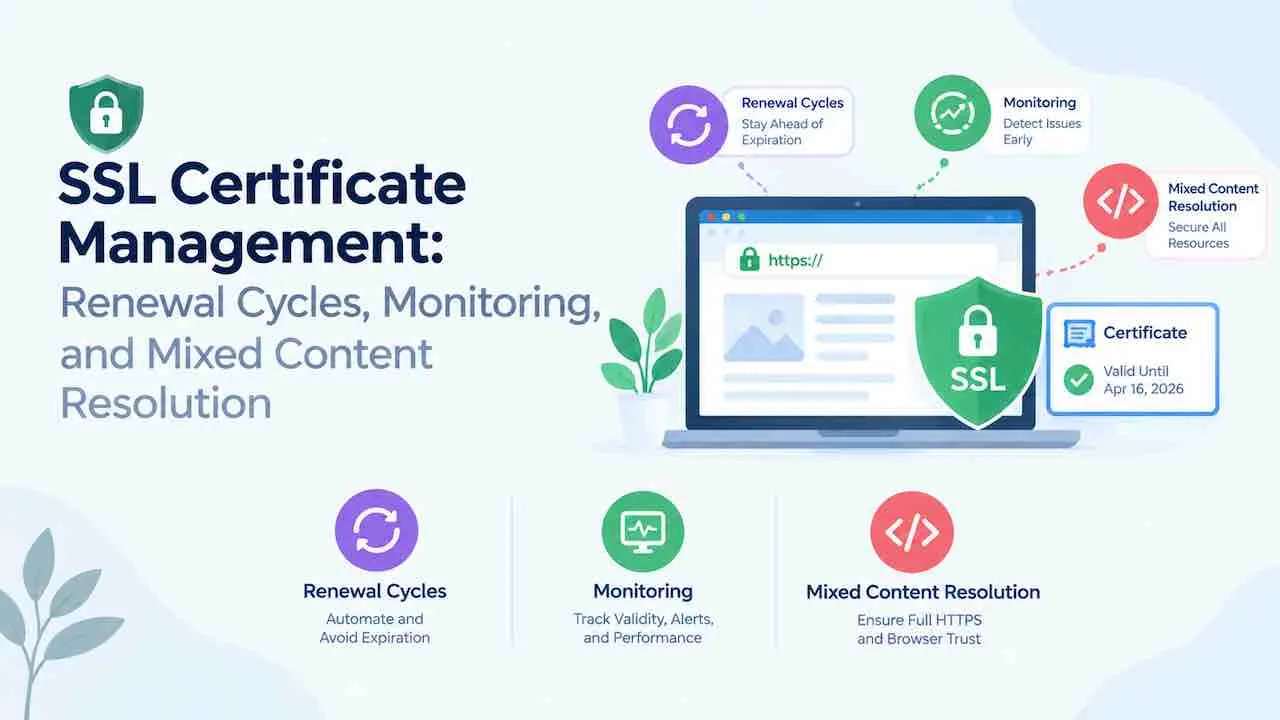
SSL certificate management, also called certificate lifecycle management (CLM), covers every stage of a TLS certificate’s life. It spans discovery, issuance, installation, renewal scheduling, expiry monitoring, revocation, and error resolution. A single expired certificate triggers browser warnings for every visitor and breaks trust instantly. 72% of organizations experienced at least one certificate outage in the past year (CyberArk). 57% report outage costs above $100,000 per incident (AppViewX/Forrester). Mixed content errors, chain mismatches, and automated renewal failures cause the same warnings as an expired certificate. This guide covers each stage with specific checks, commands, and tools.
What SSL Certificate Management Actually Covers
SSL certificate management (CLM) is not just renewal. It spans 8 distinct lifecycle stages that run on different schedules and require different tools.
- Discovery: finding every certificate on your infrastructure, including shadow certificates issued outside central management
- Issuance and installation: generating a CSR, selecting a certificate type, and deploying on the correct server
- Renewal scheduling: tracking expiry dates across all domains and subdomains
- Automated renewal: configuring ACME protocol, SCEP, or EST enrollment for automated issuance
- Monitoring and alerting: receiving alerts at 30, 14, and 7 days before expiry
- Mixed content resolution: finding and updating HTTP references after an HTTPS migration
- Configuration auditing: checking protocol versions, cipher suites, and certificate chain completeness
- Revocation: revoking compromised certificates via CRL or OCSP and reissuing clean ones
Each task has its own failure mode. Most site owners focus only on renewal and miss monitoring, chain validation, and mixed content entirely. These gaps cause the same “not secure” browser warnings as an expired certificate. Pair this with a full website maintenance services program to keep every layer of site security current.
SSL Certificate Types and Which One Your Site Needs
Choosing the wrong certificate type causes validation delays, wasted spend, or insufficient coverage. The 5 main types serve different use cases.
| Certificate Type | Validation Level | Issuance Time | Best For |
|---|---|---|---|
| Domain Validation (DV) | Domain ownership only | Minutes | Blogs, informational sites, staging environments |
| Organization Validation (OV) | Domain + business identity | 1 to 4 business days | Business sites, contact forms, client portals |
| Extended Validation (EV) | Full legal and operational review | 1 to 7 business days | E-commerce, finance, SaaS with payment flows |
| Wildcard | DV or OV | Minutes to 4 days | Sites with multiple subdomains under one root domain |
| SAN Multi-Domain | DV, OV, or EV | Minutes to 7 days | Agencies managing several distinct domain names |
All 5 types provide the same encryption strength. Validation level changes only the identity checks the Certificate Authority (CA) performs, not the TLS encryption itself. A DV certificate and an EV certificate encrypt traffic identically. The difference is what the CA verifies before issuing.
Wildcard vs SAN: Key Differences
Wildcard certificates cover one root domain and all its direct subdomains. A wildcard for *.example.com covers shop.example.com and blog.example.com but not sub.shop.example.com. SAN certificates list specific domains. A single SAN certificate can cover example.com, example.net, and example.org. Use wildcard certificates when you manage many subdomains that change often. Use SAN certificates when you manage a fixed set of distinct domains.
Certificate Discovery: Finding Every Certificate You Own
Discovery is stage 1 of certificate lifecycle management. You cannot manage certificates you don’t know exist. Certificate sprawl refers to certificates issued outside central management by DevOps teams, cloud services, or individual developers. It is the leading cause of unmonitored expiries and outage events.
Where Shadow Certificates Come From
- Cloud platforms: AWS ACM, Google Cloud, and Azure each issue certificates independently when developers provision resources
- CI/CD pipelines: automated deployments often request Let’s Encrypt certificates without logging them centrally
- Third party SaaS: CDN, email, and API gateway providers issue their own certificates for your domain
- Forgotten subdomains: staging, dev, and old marketing microsites that still resolve with valid certificates
How to Run Certificate Discovery
Use Certificate Transparency (CT) logs as your discovery source. Every publicly trusted certificate appears in CT logs within hours of issuance. Three methods cover all scenarios.
- crt.sh: search
%.yourdomain.comat crt.sh to list every certificate ever issued for your domain and all subdomains - Censys.io: scan your IP ranges and ASN to find certificates on servers you may not have mapped
- CLM platforms: Keyfactor, Venafi, AppViewX, and DigiCert CertCentral run continuous discovery. They scan cloud accounts, network ranges, and CA systems simultaneously.
Add every discovered certificate to your central inventory. Assign an owner to each one. Certificates with no named owner are the ones most likely to expire unnoticed.
SSL Certificate Renewal Cycles
Standard publicly trusted TLS certificates issued by CAs have a maximum validity period of 398 days. Let’s Encrypt certificates renew every 90 days. Plan renewal actions around these windows.
90-Day Let’s Encrypt Certificates
Let’s Encrypt certificates expire every 90 days. Manual renewal on this cycle is unsustainable. Certbot handles automated renewal via cron or systemd timer. The renewal command runs every 12 hours and renews any certificate within 30 days of expiry.
# Install Certbot and auto-renew for Apache
sudo apt install certbot python3-certbot-apache
sudo certbot --apache -d example.com -d www.example.com

# Verify auto-renewal timer is active
sudo systemctl status certbot.timer

# Test renewal without making changes
sudo certbot renew --dry-run
Certbot writes a renewal configuration file to /etc/letsencrypt/renewal/. Check this file after installation to confirm the correct domains and webroot paths are listed.
398-Day Commercial Certificates
Commercial certificates from DigiCert, GlobalSign, and Sectigo allow up to 398-day validity. Set calendar reminders at 60, 30, and 14 days before expiry. Most enterprise CA portals send automated email alerts. Do not rely on email alerts alone. Add monitoring tool alerts as a second layer.
CA/Browser Forum SC-081v3: Shrinking Validity Windows
CA/Browser Forum Ballot SC-081v3 mandates a phased reduction of maximum TLS certificate validity. The full schedule:
| Phase | Maximum Validity | DCV Reuse Period | Effective Date |
|---|---|---|---|
| Current | 398 days | 398 days | Now |
| Phase 1 | 200 days | 200 days | March 15, next year |
| Phase 2 | 100 days | 100 days | Two years from now |
| Phase 3 | 47 days | 10 days | Three years from now |
At 47-day maximum validity, certificates renew roughly 8 times per year. Manual renewal becomes impossible at scale. Sites with more than 3 certificates must implement automated renewal before Phase 3 takes effect. Supported protocols: ACME, SCEP, and EST. Sites still using commercial CAs with manual processes face certain outages under the new schedule.
Renewal Timeline for Sites With Multiple Certificates
- 60 days before expiry: generate new CSR, start OV or EV validation if required
- 30 days before expiry: complete validation, receive new certificate from CA
- 14 days before expiry: install new certificate, verify chain, test with SSL Labs
- 7 days before expiry: confirm monitoring shows new expiry date, update internal inventory
- Day of expiry: automated alert triggers if old certificate is still active anywhere
SSL Certificate Monitoring Tools and Methods
Monitoring catches expiry and configuration failures before users or search engines see them. Use at least 2 methods: an external monitoring service and direct server log checks.
External Monitoring Services
External monitors check your certificate from outside your server every few minutes. They alert via email, Slack, or PagerDuty when expiry falls below a set threshold. Alerts also fire when the certificate chain breaks.
| Tool | Free Tier | Alert Channels | Check Frequency |
|---|---|---|---|
| SSL Labs (Qualys) | Yes, manual | None (manual grading only) | On demand |
| UptimeRobot | Yes, 50 monitors | Email, Slack, webhook | Every 5 minutes |
| TrackSSL | No | Email, Slack | Daily |
| Oh Dear | No | Email, Slack, SMS, webhook | Every minute |
| Semonto | No | Email, Slack, Teams | Every minute |
| Zabbix | Yes, self-hosted | Email, Slack, custom | Configurable |
Certificate Checks via Command Line
OpenSSL checks expiry from any server with network access. Run this command to read the expiry date of any domain’s certificate directly.
# Check certificate expiry for any domain
echo | openssl s_client -connect example.com:443 -servername example.com 2>/dev/null | openssl x509 -noout -dates

# Check full certificate chain
echo | openssl s_client -connect example.com:443 -showcerts 2>/dev/null | openssl x509 -noout -text | grep -E "Issuer|Subject|Not After"

# Check certificate from a specific server IP (useful for load balancers)
echo | openssl s_client -connect 203.0.113.1:443 -servername example.com 2>/dev/null | openssl x509 -noout -dates
Monitoring Alert Thresholds
Set 3 alert levels for every certificate. A 30-day alert gives time to complete OV or EV validation. A 14-day alert triggers installation. A 7-day alert is a final warning before browsers flag the site.
For Let’s Encrypt certificates, set alerts at 20 days. This catches any failed automated renewal before the 30-day renewal window closes.
CSR Generation and Private Key Management
A Certificate Signing Request (CSR) is required for every new or renewed certificate from a commercial CA. The CSR contains your domain name, organization details, and public key. Your private key never leaves your server.
# Generate a 2048-bit RSA private key and CSR
openssl req -new -newkey rsa:2048 -nodes -keyout example.com.key -out example.com.csr

# Generate with a 4096-bit key for higher-security environments
openssl req -new -newkey rsa:4096 -nodes -keyout example.com.key -out example.com.csr

# Verify CSR contents before submitting to CA
openssl req -text -noout -verify -in example.com.csr
Store private keys with file permissions set to 600. Only the web server process should read the key file. Back up private keys to encrypted offline storage. A lost private key requires a full certificate reissuance.
Certificate Chain Installation
Every certificate issued by a CA requires a chain file. The chain connects your certificate to the CA’s root certificate that browsers trust. A missing intermediate certificate causes an “untrusted certificate” error on some browsers. This happens even when the certificate itself is valid.
Apache Chain Installation
# In your Apache VirtualHost block
SSLCertificateFile /etc/ssl/example.com.crt
SSLCertificateKeyFile /etc/ssl/example.com.key
SSLCertificateChainFile /etc/ssl/example.com.ca-bundle

# Restart Apache after changes
sudo systemctl restart apache2
Nginx Chain Installation
# Nginx requires the full chain in one file
cat example.com.crt example.com.ca-bundle > example.com.chained.crt

# In your Nginx server block
ssl_certificate /etc/nginx/ssl/example.com.chained.crt;
ssl_certificate_key /etc/nginx/ssl/example.com.key;

# Test configuration before reloading
sudo nginx -t
sudo systemctl reload nginx
Verify Chain Completeness
Run an SSL Labs test at ssllabs.com after every installation. A correct chain shows grade A or A+. A broken chain shows grade B or lower with a “chain issues” warning. Fix chain errors before setting the site live.
Mixed Content Resolution
Mixed content appears when an HTTPS page loads resources over HTTP. Browsers block active mixed content (JavaScript and CSS) and warn on passive mixed content (images and video). Both types damage trust signals and affect technical SEO maintenance scores.
Active vs Passive Mixed Content
| Type | Resources Affected | Browser Action | SEO Impact |
|---|---|---|---|
| Active mixed content | JavaScript, CSS, iframes, XMLHttpRequest | Blocked by all modern browsers | Broken functionality, higher bounce rate |
| Passive mixed content | Images, audio, video | Warning shown (padlock removed or broken) | Trust signal loss, HTTPS ranking factor reduced |
Finding Mixed Content
Use 3 methods to find every HTTP reference on an HTTPS site.
- Browser DevTools: open the Console tab. Mixed content errors list the exact HTTP URL causing the warning.
- Why No Padlock (whynopadlock.com): paste any URL and it returns every HTTP resource on that page. This includes resources hidden inside CSS and iframes.
- Screaming Frog: crawl the full site and filter by “HTTP” in Response Codes. This surfaces every internal HTTP link.
Fixing Mixed Content in WordPress
WordPress stores absolute URLs in the database. A direct find and replace in the database updates all HTTP references to HTTPS. This is the most common mixed content fix for WordPress website maintenance after an HTTPS migration.
# Using WP-CLI to update all database URLs
wp search-replace 'http://example.com' 'https://example.com' --all-tables

# Using Better Search Replace plugin (no CLI access needed)
# Install: Plugins > Add New > Better Search Replace
# Search: http://example.com
# Replace: https://example.com
# Select all tables > Run Search/Replace
After running the database update, clear all caches: WordPress object cache, page cache plugins, and CDN cache. Confirm with a browser DevTools check that no HTTP references remain.
Fixing Mixed Content in Apache and Nginx
# Apache: force HTTPS upgrade for passive mixed content
# Add to .htaccess or VirtualHost block
Header always set Content-Security-Policy "upgrade-insecure-requests"

# Nginx: same directive in server block
add_header Content-Security-Policy "upgrade-insecure-requests" always;
The upgrade-insecure-requests CSP directive tells browsers to load HTTP resources over HTTPS automatically. It fixes passive mixed content without changing URLs in the database. Use it as a temporary fix while you update source URLs directly.
Fixing Mixed Content in Hardcoded HTML
Static HTML files with HTTP links need direct editing. Run a grep search to find all instances before editing.
# Find all HTTP references in HTML files
grep -r "http://" /var/www/html/ --include="*.html" --include="*.htm"

# Replace in bulk with sed
find /var/www/html/ -name "*.html" -exec sed -i 's|http://example.com|https://example.com|g' {} +
HTTPS Redirect Configuration
HTTP to HTTPS redirects must return a 301 status code. A 302 redirect passes no link equity and creates slower load times. Configure the redirect at the server level, not inside a CMS plugin.
# Apache .htaccess 301 redirect
RewriteEngine On
RewriteCond %{HTTPS} off
RewriteRule ^(.*)$ https://%{HTTP_HOST}%{REQUEST_URI} [R=301,L]

# Nginx server block redirect
server {
    listen 80;
    server_name example.com www.example.com;
    return 301 https://$host$request_uri;
}
Avoid chained redirects. HTTP to HTTPS and bare domain to www should resolve in 1 redirect, not 2. Check redirect chains with a tool like httpstatus.io or Screaming Frog before going live. Redirect chains slow page load and reduce crawl efficiency. The page load speed improvements guide covers SSL redirect configuration alongside TTFB and server response tuning.
HSTS: HTTP Strict Transport Security
HSTS tells browsers to only connect to your site over HTTPS for a set period. It prevents SSL stripping attacks and removes the initial HTTP redirect for returning visitors.
# Apache: add HSTS header (1 year max-age)
Header always set Strict-Transport-Security "max-age=31536000; includeSubDomains; preload"

# Nginx
add_header Strict-Transport-Security "max-age=31536000; includeSubDomains; preload" always;
Start with a short max-age value such as 86400 (1 day) during testing. Increase to 31536000 (1 year) only after confirming HTTPS works correctly on all pages and subdomains. Submit to the HSTS preload list at hstspreload.org once the long max age is live.
TLS Protocol Version and Cipher Suite Management
SSL 2.0, SSL 3.0, TLS 1.0, and TLS 1.1 are deprecated. Browsers and security scanners flag sites still supporting these versions. TLS 1.2 and TLS 1.3 are the only acceptable protocols.
# Nginx: restrict to TLS 1.2 and TLS 1.3
ssl_protocols TLSv1.2 TLSv1.3;
ssl_ciphers ECDHE-ECDSA-AES128-GCM-SHA256:ECDHE-RSA-AES128-GCM-SHA256:ECDHE-ECDSA-AES256-GCM-SHA384:ECDHE-RSA-AES256-GCM-SHA384;
ssl_prefer_server_ciphers off;

# Apache: restrict protocol versions
SSLProtocol all -SSLv3 -TLSv1 -TLSv1.1
SSLCipherSuite ECDHE-ECDSA-AES128-GCM-SHA256:ECDHE-RSA-AES128-GCM-SHA256
TLS 1.3 removes weak cipher suites entirely. Sites running TLS 1.3 only have a smaller attack surface. Enable TLS 1.3 on servers running OpenSSL 1.1.1 or newer.
OCSP Stapling
Online Certificate Status Protocol (OCSP) stapling speeds up TLS handshakes and improves privacy. Without stapling, browsers query the CA’s OCSP server during every connection. With stapling, your server attaches the CA’s OCSP response to the TLS handshake directly. This removes the extra CA lookup round trip.
# Nginx: enable OCSP stapling
ssl_stapling on;
ssl_stapling_verify on;
ssl_trusted_certificate /etc/nginx/ssl/example.com.ca-bundle;
resolver 8.8.8.8 1.1.1.1 valid=300s;
resolver_timeout 5s;

# Apache
SSLUseStapling on
SSLStaplingCache shmcb:/tmp/stapling_cache(128000)
Certificate Revocation: CRL and OCSP
Revocation cancels a certificate before its expiry date. Revoke immediately when a private key is compromised. Also revoke when a domain changes hands, or when a certificate was incorrectly issued by the CA.
CRL vs OCSP Revocation
| Method | How It Works | Limitation |
|---|---|---|
| CRL (Certificate Revocation List) | CA publishes a signed list of revoked serial numbers. Browsers download and cache it. | Lists grow large. Browsers cache stale CRLs for hours or days. |
| OCSP (Online Certificate Status Protocol) | Browser queries the CA’s OCSP responder in real time for each certificate. | Adds latency per connection. Privacy risk: CA sees which sites users visit. |
| OCSP Stapling | Server pre-fetches its own OCSP response and attaches it to the TLS handshake. | Requires server-side configuration. Stapled response expires every 24 to 48 hours. |
How to Revoke a Certificate
- Commercial CA (DigiCert, GlobalSign, Sectigo): log into your CA portal and find the certificate by serial number. Use the revoke function. Revocation takes effect within minutes on OCSP and within 24 hours on CRL.
- Let’s Encrypt via Certbot: run
sudo certbot revoke --cert-path /etc/letsencrypt/live/example.com/cert.pemthen immediately request a new certificate.
After revoking, reissue with a new private key. Never reuse a key pair after a compromise. Update your certificate inventory with the revocation date and the new certificate serial number.
Certificate Transparency and CAA Records
Certificate Transparency Logs
All publicly trusted certificates must be logged in Certificate Transparency (CT) logs. You can monitor CT logs to detect unauthorized certificates issued for your domain. Use crt.sh to search for all certificates ever issued for your domain. Run this check monthly as part of your website security maintenance routine.
CAA DNS Records
Certification Authority Authorization (CAA) DNS records restrict which CAs can issue certificates for your domain. A site without CAA records allows any CA to issue a certificate for it. This creates risk if a CA is compromised or makes an error.
# Add CAA record via DNS (example for DigiCert only)
example.com.  CAA 0 issue "digicert.com"
example.com.  CAA 0 issuewild "digicert.com"
example.com.  CAA 0 iodef "mailto:security@example.com"

# To allow Let's Encrypt
example.com.  CAA 0 issue "letsencrypt.org"
The iodef field receives notification emails when a CA rejects an unauthorized issuance attempt. Monitor these alerts to detect domain hijacking attempts early.
SSL Certificate Management for WordPress Sites
WordPress sites face 4 specific SSL management challenges beyond standard server configuration.
WordPress Admin Panel HTTPS
Add these lines to wp-config.php to force the WordPress admin and login page over HTTPS.
define('FORCE_SSL_ADMIN', true);
define('FORCE_SSL_LOGIN', true);
Site URL Settings
Update WordPress Address and Site Address in Settings > General to use https://. Mismatched URLs between these settings and the server configuration cause redirect loops.
Plugin Conflicts and SSL
Some caching plugins, security plugins, and CDN integrations intercept SSL connections. These can cause redirect loops or certificate errors. Test SSL after installing or updating any security or performance plugin. Clear all plugin caches after a certificate renewal.
Multisite SSL
WordPress Multisite with subdomain installations requires a wildcard certificate. Each subdomain must be covered. A certificate covering only one domain on a multisite installation triggers mismatch warnings on every subsite. Only the primary domain is covered.
SSL Certificate Management on Cloud and CDN Platforms
Cloudflare SSL Management
Cloudflare has 4 SSL modes: Off, Flexible, Full, and Full (Strict). Use Full (Strict) only. Flexible mode encrypts traffic between visitor and Cloudflare but sends unencrypted traffic to your origin server. This creates a false sense of security and fails PCI DSS compliance requirements.
Cloudflare automatically renews its edge certificates. You still need a valid origin certificate. Use Cloudflare Origin CA certificates for the connection between Cloudflare and your server. These are free and valid for up to 15 years.
AWS Certificate Manager (ACM)
ACM provides free certificates for AWS services including CloudFront, Elastic Load Balancer, and API Gateway. ACM certificates renew automatically. You cannot export ACM certificates to servers outside AWS.
Google Cloud and Azure
Google Cloud Managed SSL certificates renew automatically when attached to a load balancer. Azure App Service Managed Certificates are free and renew automatically for custom domains.
SSL Certificate Inventory Management
Sites with more than 5 certificates need a central inventory. An inventory prevents missed renewals across subdomains, staging environments, and external service integrations.
| Field | What to Record |
|---|---|
| Domain covered | All domains and subdomains on each certificate |
| Certificate type | DV, OV, EV, Wildcard, SAN |
| Issuing CA | DigiCert, GlobalSign, Let’s Encrypt, etc. |
| Expiry date | Exact date and time in UTC |
| Auto-renewal status | Enabled or manual |
| Server location | Server hostname, IP, or cloud resource name |
| Private key location | File path and backup location |
| Last renewal date | Date of most recent successful renewal |
| Next renewal action date | 60 days before expiry for OV/EV, 20 days for Let’s Encrypt |
Common SSL Certificate Errors and Fixes
NET::ERR_CERT_DATE_INVALID
This error means the certificate has expired. Renew immediately. For Let’s Encrypt, run sudo certbot renew --force-renewal. For commercial certificates, install the renewed certificate from your CA portal and restart the web server.
NET::ERR_CERT_COMMON_NAME_INVALID
The domain in the browser address bar does not match any domain on the certificate. Common causes: the certificate covers example.com but not www.example.com. A wildcard for *.example.com does not cover the root domain. Reissue with the correct domain list or add a SAN entry.
ERR_SSL_PROTOCOL_ERROR
The server and browser cannot agree on a TLS protocol version. This happens when a server still runs only TLS 1.0 or TLS 1.1. Enable TLS 1.2 and TLS 1.3 in the server configuration and disable deprecated versions.
Certificate Chain Incomplete (Grade B on SSL Labs)
The intermediate certificate is missing from the server configuration. Download the CA bundle from your CA. Add it to the server configuration using the commands in the chain installation section above. Retest with SSL Labs after restarting the server.
ERR_TOO_MANY_REDIRECTS
An HTTPS redirect loop. 3 common causes: WordPress site URL is set to HTTP while the server forces HTTPS. Cloudflare may be on Flexible mode while the server also redirects. Or .htaccess has conflicting redirect rules. Set Cloudflare to Full (Strict) and confirm WordPress site URL uses https://.
Emergency Certificate Reissuance: What to Do When a Certificate Expires in Production
A production certificate expiry blocks all visitors immediately. Follow these steps in order to restore service as fast as possible.
- Step 1: Let’s Encrypt run
sudo certbot renew --force-renewaland restart the web server. Service restores in under 2 minutes on most servers. - Step 2: Commercial CA with existing CSR log into the CA portal. Reissue against the existing order. Download the new certificate and chain, install on the server, and restart.
- Step 3: Commercial CA, no saved CSR generate a new private key and CSR with OpenSSL. Submit to the CA, complete DV validation in minutes, install, and restart.
- Step 4: Cloudflare sites Cloudflare edge certificates renew automatically. If the origin certificate has expired, replace it with a new Cloudflare Origin CA certificate. Find this in the SSL/TLS dashboard. Set Cloudflare to Full (Strict).
- Step 5: After restoring confirm the new expiry date in your monitoring tool and update the inventory. Run an SSL Labs test to confirm grade A.
After the incident, stagger your certificate expiry dates deliberately. Renewing all certificates in the same month creates a single large risk window. Spread expiry dates across 3 to 4 months. No single renewal event should overlap multiple properties.
Kubernetes and Container Certificate Management
Containerized environments create certificates at scale across hundreds of services. Manual management fails in Kubernetes. cert manager is the standard automated certificate controller for Kubernetes clusters.
# Install cert-manager via Helm
helm repo add jetstack https://charts.jetstack.io
helm install cert-manager jetstack/cert-manager \
  --namespace cert-manager \
  --create-namespace \
  --set installCRDs=true

# Create a ClusterIssuer for Let's Encrypt
apiVersion: cert-manager.io/v1
kind: ClusterIssuer
metadata:
  name: letsencrypt-prod
spec:
  acme:
    server: https://acme-v02.api.letsencrypt.org/directory
    email: admin@example.com
    privateKeySecretRef:
      name: letsencrypt-prod
    solvers:
    - http01:
        ingress:
          class: nginx
cert manager handles issuance, renewal, and rotation automatically. It integrates with Let’s Encrypt via ACME. Internal CAs connect via SCEP or EST for private PKI environments. Every certificate in the cluster appears in cert manager CertificateRequest resources. This gives a central inventory for all Kubernetes managed certificates.
Post Quantum Cryptography and Crypto Agility
Current TLS encryption relies on RSA and ECDSA algorithms. Quantum computers capable of breaking RSA and ECDSA are not available today. NIST has finalized post quantum cryptography (PQC) standards, including ML KEM and ML DSA. Organizations with long lived data or compliance requirements should begin planning PQC migration now.
Crypto agility means designing your certificate infrastructure so you can swap cryptographic algorithms without rebuilding systems. Steps toward crypto agility in certificate management:
- Record the key algorithm (RSA, ECDSA, EdDSA) for every certificate in your inventory
- Avoid hardcoding specific algorithm choices in deployment scripts, and parameterize them
- Test PQC hybrid certificates in staging environments using OpenSSL 3.x with OQS provider
- Monitor CA announcements from DigiCert, GlobalSign, and Let’s Encrypt for PQC certificate support timelines
SSL Certificate Management Monthly Checklist
| Task | Frequency | Tool |
|---|---|---|
| Check all certificate expiry dates | Monthly | UptimeRobot, OpenSSL command |
| Verify auto-renewal is active | Monthly | sudo certbot renew --dry-run |
| Run SSL Labs grade check | Monthly | ssllabs.com |
| Scan for mixed content | Monthly or after content updates | Why No Padlock, Screaming Frog |
| Check CT logs for unauthorized certificates | Monthly | crt.sh |
| Verify HSTS header is active | Monthly | securityheaders.com |
| Confirm OCSP stapling works | Monthly | SSL Labs OCSP test |
| Audit redirect chains | Monthly | Screaming Frog, httpstatus.io |
| Review CAA DNS records | Quarterly | DNS provider dashboard |
| Update certificate inventory | After every renewal | Spreadsheet or SSL management platform |
A regular website maintenance checklist prevents most SSL site outages. These checks stop trust signal losses before visitors or crawlers see them.
SEO Impact of SSL Certificate Management
Google confirmed HTTPS as a ranking signal. Beyond rankings, SSL errors directly damage organic performance in 3 ways.
- Bounce rate spikes: a browser security warning stops most visitors before they reach your content. High bounce rates from security warnings send negative engagement signals to search engines. Bounce rate in Google Analytics tracks exactly this kind of trust driven exit from your site.
- Crawl errors: Googlebot and AI crawlers like ClaudeBot and GPTBot abort requests when they encounter SSL errors. Pages behind certificate errors drop from both search and AI answer indexes.
- EEAT signals: mixed content warnings and missing HTTPS signal low trustworthiness to Google’s quality raters. A properly managed SSL setup reinforces the EEAT trust signals your content relies on.
Frequently Asked Questions
Let’s Encrypt certificates renew every 90 days automatically via Certbot. Commercial DV, OV, and EV certificates are valid for up to 398 days. Renew them 30 to 60 days before expiry. Start OV or EV renewal 60 days out to allow time for CA identity verification.
Mixed content warnings appear when an HTTPS page still loads some resources over HTTP. Common causes include hardcoded HTTP URLs in the WordPress database. Post images and external scripts loaded over HTTP also trigger warnings. Fix with a database URL update, the upgrade-insecure-requests CSP header, or direct HTML edits.
TLS (Transport Layer Security) is the current encryption protocol. SSL (Secure Sockets Layer) is its older predecessor and is no longer used. All modern certificates use TLS 1.2 or TLS 1.3. The term “SSL certificate” remains in common use for historical reasons. The actual protocol in use is TLS.
A certificate chain error means the intermediate certificate file is missing from your server configuration. Download the CA bundle from your certificate authority. For Apache, add SSLCertificateChainFile pointing to the bundle. For Nginx, concatenate the site certificate and CA bundle into one file. Run an SSL Labs test to confirm the chain shows as complete.
Yes. An expired SSL certificate triggers browser security warnings that stop most visitors from reaching your site. Googlebot and AI crawlers also abort on SSL errors. Your pages drop from both search indexes and AI answer systems. Google confirmed HTTPS as a ranking factor, and an expired certificate removes that signal entirely.
Certificate lifecycle management (CLM) is the full process of discovering, issuing, monitoring, renewing, and revoking TLS certificates. It covers every certificate across your infrastructure. Small sites with under 10 certificates manage CLM with Certbot plus a monitoring tool. Sites with hundreds of certificates across cloud accounts and load balancers need a dedicated CLM platform. Tools such as Keyfactor, Venafi, AppViewX, and DigiCert CertCentral provide centralized discovery and automated renewal. They also generate audit trails for compliance reporting.
Keep Your SSL Certificates Active and Correctly Configured
An expired certificate or broken chain removes your site from search results and AI answer systems fast. Most SSL failures are preventable with automated renewal and basic monitoring.
Is every certificate on your site monitored and renewing automatically?
Quick Digital has delivered website maintenance services since 2014. We audit certificate chains, set up automated renewal, and resolve mixed content errors. TLS settings are managed across every server and CDN you run.
Get a Free SSL Audit