

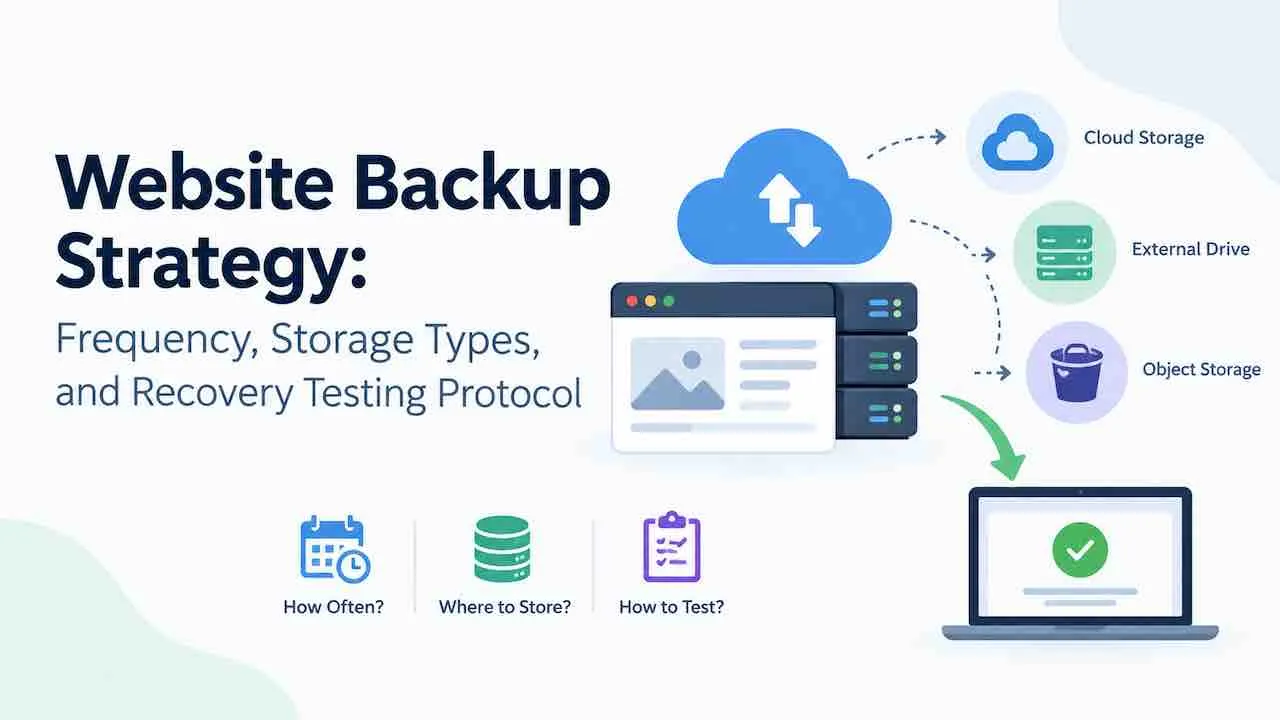
3 components define any complete backup strategy. Store 3 copies across 2 different storage types, with 1 copy held offsite. Run a restore test on a staging environment every 30 days. This 3-2-1 structure, paired with scheduled backup automation and tested recovery, is the minimum viable standard for any site that cannot afford permanent data loss.
Data loss costs $5,600 per minute of downtime per Gartner research. 60% of businesses that lose critical data permanently close within 6 months. A structured backup plan cuts recovery time from hours to under 30 minutes.
This guide covers backup types, backup schedule by site type, the 3-2-1 storage rule, backup encryption, file exclusions, pre-update backups, cPanel tool limitations, automated tool comparison, recovery testing, and retention policy.
What Does a Website Backup Strategy Need to Cover?
4 areas must be covered for any recovery to succeed. Missing one creates a gap that blocks full site restoration during an actual incident.
- Backup scope: Files, complete database backup, structured data, and SSL certificates. A backup capturing only the database leaves themes, plugins, and uploaded media unrestorable.
- Backup frequency: How often new backup runs execute. Frequency must match how often your site data changes. A daily backup for an hourly-updated site creates an unacceptable RPO gap.
- Storage locations: Where backup copies reside. At least 2 locations, including 1 offsite backup location, are required. A backup stored only on the live server is not a backup strategy.
- Recovery testing: Regular tests that confirm backup files restore correctly. An untested backup is an assumption you cannot verify until the moment you need it.
Sites skipping recovery testing lose 3.5 more hours during real incidents than sites that test monthly. The recovery testing protocol is not optional in any serious website backup plan.
Which Backup Types Form a Complete Website Backup Strategy?
4 backup types cover all scenarios. Each has a different cost, speed, and restore profile. The right mix produces the most efficient backup rotation schedule for your site type and RTO target.
Full Backup
A full backup copies every file, database record, and config setting. It produces the cleanest restore point but requires the most storage and the longest backup window of the 3 scheduled types.
Run full backups weekly for static and blog sites. Run daily full backups for WooCommerce stores or any site updated more than once per day. Full backups anchor every incremental or differential run in your backup schedule.
Incremental Backup
An incremental backup copies only files changed since the last run. It runs faster and uses less storage per job than a full backup. Restoring from incremental backups chains the full backup plus every incremental run since that point.
Run incremental backups daily between full backup runs. UpdraftPlus, BackWPup, and BlogVault all support incremental scheduling with configurable backup frequency intervals. Most backup automation tools handle the chain restore automatically once configured.
Differential Backup
A differential backup copies all changes since the last full backup. It uses more storage than an incremental but restores faster. Only 2 files are needed: the full backup and the latest differential file.
Use differential backups when RTO targets are tight and restore speed matters more than storage cost. WooCommerce stores prefer differential backups when a 2-file restore is faster than chaining 7 incremental files.
Real-Time Backup
Real-time backup captures every change as it happens. It does not wait for a scheduled backup window to run. BlogVault runs real-time incremental tracking for WooCommerce stores, capturing order data within seconds of each transaction.
Real-time backup suits any site where a 1-hour RPO is unacceptable. It sets an RPO near zero. It requires more storage and processing load than a scheduled incremental run.
How Often Should You Back Up Your Website?
Backup frequency depends on how often your site data changes. A site updated hourly needs a different backup schedule than a brochure site updated monthly. The table below maps site types to recommended schedules and minimum retention periods.
| Site Type | Full Backup Frequency | Incremental Frequency | Minimum Retention. |
|---|---|---|---|
| Static brochure site | Weekly | Not required | 4 weeks. |
| Blog (1 to 3 posts per week) | Weekly | Daily | 8 weeks. |
| Membership or community site | Daily | Every 6 hours | 12 weeks. |
| WooCommerce store (active orders) | Daily | Every 3 hours | 26 weeks. |
| SaaS or app with user data | Daily | Hourly | 52 weeks. |
RPO (Recovery Point Objective) defines the maximum acceptable data loss measured in time. A WooCommerce store running 3-hour incremental backups carries a 3-hour RPO. Order data created within those 3 hours is at risk of permanent loss. A WordPress maintenance schedule accounts for plugin update cycles when setting your daily backup window, so backups run cleanly without plugin conflicts.
WooCommerce stores managing live order data need both daily full backups and sub-3-hour incremental runs. A WooCommerce store maintenance plan pairs incremental runs with real-time order tracking for near-zero RPO.
How Does the 3-2-1 Backup Rule Work for Websites?
3 copies, 2 storage types, 1 offsite location. This rule defines the minimum viable storage architecture for any website backup strategy. A backup stored only on the live server fails when that server fails.
On-Site Copy
On-site storage keeps 1 backup copy on your server or local machine. It provides the fastest restore access when the server is operational. It fails completely when the server is compromised, hardware fails, or ransomware infects the hosting environment.
cPanel backups stored inside the hosting account and staging environment snapshots both count as on-site storage. Both restore quickly. Neither protects against account-level compromise or host-level data loss. Use on-site storage as 1 of your 2 required storage types, never as the only copy.
Offsite Cloud Copy
A cloud backup stores 1 copy on a separate provider’s infrastructure. Amazon S3, Google Cloud Storage, and Dropbox Business are the 3 most common offsite destinations. Connect your backup plugin to your preferred destination and automate file transfers after each run completes.
UpdraftPlus Premium connects directly to Amazon S3, Google Drive, Dropbox, and 7 other offsite destinations. BlogVault stores every backup in its own offsite infrastructure with 365-day backup retention included. For WooCommerce and membership sites, offsite cloud storage is the minimum required standard.
Air-Gapped Copy
A third copy on an air-gapped system is the only backup ransomware cannot reach. Air-gapped storage has no network connection to your live environment. Ransomware encrypts every connected drive it can find but cannot reach a physically disconnected one.
Download 1 monthly full backup to a local drive encrypted with AES-256. Store it physically separate from your server. Healthcare platforms, financial services sites, and any site storing personal data need this level of storage isolation.
Does Your Website Backup Need Encryption?
Yes. Every backup file needs encryption before leaving your server. An unencrypted backup on Amazon S3 contains your full database, user credentials, and order history. A single misconfigured bucket policy makes that data publicly accessible without any alert.
Use AES-256 encryption at minimum for all backup files. UpdraftPlus Premium encrypts backup archives before uploading to offsite destinations. Verify your tool applies encryption by default, not only as an optional add-on setting.
- At-rest encryption: Backup files stay encrypted while stored on cloud destinations like Amazon S3.
- In-transit encryption: Backup transfers use TLS or SFTP to prevent interception during upload.
- Key management: Store encryption keys separately from backup files. A key stored in the same bucket provides no protection if that storage is compromised.
- SSL certificate backup: Include SSL certificate files in every backup scope to restore HTTPS immediately after a full restore.
Which Files Should You Exclude from a Website Backup?
Cache folders, log files, and temp directories have no restore value. They regenerate automatically after every restore. Including them inflates backup file size by 30 to 60% without adding anything to your recovery capability.
Standard backup exclusion list for WordPress and WooCommerce sites:
- wp-content/cache/ and all subdirectories.
- wp-content/uploads/cache/ from page builders like Elementor or Beaver Builder.
- wp-content/upgrade/ (temporary WordPress update staging files).
- Server log files and PHP error logs.
- node_modules/ directories from themes or plugins that use build tools.
- Compiled CSS and JS files regenerated by page builders or minification plugins.
Configure exclusions inside your backup plugin before the first automated run executes. Smaller backup files transfer faster to offsite cloud storage and complete reliably within your scheduled backup window.
Why Back Up Before Every WordPress Update?
Plugin conflicts and failed core updates are the second-most-common cause of site downtime after server failures. A pre-update backup gives a clean restore point if the update breaks authentication, checkout, or core page rendering.
Pre-update backup protocol:
- Trigger a manual full backup from your backup plugin before any update runs.
- Confirm the backup completed and uploaded to offsite cloud storage.
- Run the WordPress core, theme, or plugin update on a staging environment first.
- Verify the staging restore matches production before pushing to the live site.
- Keep the pre-update backup for at least 14 days after a successful update.
UpdraftPlus and BlogVault both support on-demand manual backups outside the automated backup schedule. Configure a cron job to trigger a pre-update backup automatically if your hosting environment supports WP-CLI.
Are cPanel Backups Enough for Your Site?
cPanel backups alone are not enough. They fail the 3-2-1 rule on 2 counts: the backup stores on the same server by default, and retention is controlled by your hosting provider, not by you.
cPanel backup limitations every site owner needs to understand:
- cPanel backups store on the same server by default, violating the 3-2-1 offsite requirement.
- Hosting providers retain only 7 to 30 days of server-level snapshots.
- Shared hosting backup schedules run at server level, not per individual site.
- FTP backup transfer to an external destination requires manual setup in cPanel’s Backup Wizard.
Use cPanel backups as 1 of your 3 required copies, not as your primary backup strategy. Pair every cPanel backup with an automated backup plugin that pushes copies to offsite cloud storage. JetBackup is the most used cpanel backup extension, adding Amazon S3 and Google Drive to cPanel environments.
How Do You Test if a Website Backup Actually Works?
Restore it to a staging environment every 30 days. An untested backup has a 58% failure rate during real recovery attempts per StorageCraft research. Monthly testing drops that rate to under 4%. This process is the core of any website disaster recovery plan.
Monthly Restore Test Checklist
Run every restore test on a staging environment, not the live site. A live-site restore risks overwriting working data with a corrupted backup file.
- Select the most recent full backup from your offsite storage location.
- Restore it to a staging environment using your backup tool’s restore function.
- Verify the database connects and all tables load without errors.
- Test every core function: login, checkout, form submission, and media display.
- Verify the SSL certificate loads correctly over HTTPS with no mixed content warnings.
- Record the full restoration time from start to finish in minutes.
- Compare the restored site timestamp against your RPO target.
- Document any failures and correct the backup configuration before the next run.
The same restore steps apply during site recovery after a hack. Clean restore points and a tested process determine how much data survives the incident.
RTO and RPO Targets
RTO (Recovery Time Objective) defines the maximum downtime before recovery must complete. Set your RTO based on the revenue cost of each hour offline. A site generating $10,000 per day needs an RTO under 2 hours.
Standard RTO benchmarks by site type:
- Static brochure site: 24 hours is acceptable. No transactional data is at risk.
- Blog with ad revenue: 4 hours maximum. Revenue loss begins immediately at outage.
- Membership or subscription site: 2 hours maximum. Subscriber trust erodes past this point.
- WooCommerce store: 1 hour maximum. Cart abandonment and order loss compound each minute.
- SaaS platform: 30 minutes or less. SLA violations and churn begin within the first hour.
Calculate your hourly downtime cost before setting an RTO target. A site generating $5,000 per day cannot carry a 4-hour RTO without significant revenue impact.
Which Automated Backup Tool Fits Your Site?
Manual backups fail due to human error and skipped schedules. Automated tools eliminate scheduling gaps, missed runs, and configuration drift. Match the tool to your site type, hosting environment, and RTO target.
| Tool | Best For | Incremental Support | Offsite Destinations | Starting Price. |
|---|---|---|---|---|
| UpdraftPlus Premium | WordPress blogs and business sites | Yes | S3, Google Drive, Dropbox, 7+ more | $70 per year. |
| BlogVault | WordPress and WooCommerce stores | Yes, real-time for WooCommerce. | BlogVault cloud, 365-day retention | $149 per site per year. |
| ManageWP Backups | Agencies managing multiple sites | Yes | S3, Google Drive, Dropbox | $2 per site per month. |
| JetBackup | cPanel hosting environments | Yes | Remote FTP, S3, Google Drive | Included with select hosts. |
| Duplicati | Self-hosted and developer setups | Yes | Any S3-compatible storage | Free, open source. |
Set every tool to run checksum verification after each backup completes. A failed checksum means a corrupted file set. Treat a failed checksum the same as a missing backup and re-run immediately. Review failure notification emails daily.
Businesses running managed website maintenance with backups get automated daily backups, offsite storage, and monthly restore tests without managing each tool separately.
How Long Should You Keep Old Backups?
A backup retention policy defines how long old backups stay stored. Multi-version retention prevents one critical gap: restoring to a point before malware infected the site. A single-version backup may have already captured the infection.
The Grandfather-Father-Son (GFS) backup rotation is the standard retention model for websites. It keeps daily backups for 1 week, weekly for 1 month, and monthly for 1 year. This model gives 3 restore point depths without excessive storage costs.
Minimum retention by site type:
- Static brochure site: Keep the last 4 weekly backups.
- Blog or content site: Keep daily backups for 4 weeks plus monthly backups for 3 months.
- WooCommerce store: Keep daily backups for 8 weeks plus monthly backups for 6 months.
- Membership or SaaS site: Follow GFS rotation with a minimum 12-month monthly archive.
A 4-week minimum retention lets you restore before a malware infection that went undetected for days. Backup rotation with fewer than 4 versions makes pre-infection restore impossible for most site types.
Backup Mistakes That Make Recovery Impossible
These mistakes cancel the value of an otherwise working backup system. Each creates a single point of failure that prevents recovery when it matters most.
- Storing all backups on the live server. A server compromise destroys both simultaneously. Keep at least 1 copy at a separate offsite location at all times.
- Never running a restore test. 58% of untested backups fail during real recovery per StorageCraft. A monthly staging restore test confirms your backup strategy works before you need it.
- Keeping only 1 backup version. A single version may have been taken after malware was already present. Retain at least 4 weekly versions for multi-version coverage.
- Backing up only the database. WordPress and WooCommerce sites need the database, wp-content folder, and config files together. A database-only backup cannot restore themes, plugins, or media uploads.
- Skipping backup encryption. Unencrypted archives on cloud storage expose your full user database. Apply AES-256 encryption to every archive before upload.
- Ignoring backup failure alerts. A silent failure running 3 weeks leaves no viable restore point for that period. Review automated alerts daily without exception.
Website Backup Strategy by QuickDigital
Stop Hoping Your Backups Work. Prove It.
QuickDigital builds and manages complete website backup strategies for businesses that cannot afford data loss. Since 2014, we have protected WordPress, WooCommerce, and custom web platforms with automated backups, offsite storage, encryption, and monthly recovery tests.
Get My Backup Strategy AuditFree audit. No obligation. Response within 24 hours.
Frequently Asked Questions
Static sites need weekly full backups. Blogs need weekly full backups and daily incremental runs. WooCommerce stores need daily full backups and 3-hour incremental runs. Match backup frequency to your RPO target.
3 copies, 2 storage types, and 1 offsite location. Keep 1 copy on the server, 1 on cloud storage like Amazon S3, and 1 on a physically separate drive. This structure survives server failures, ransomware, and cloud outages independently.
Restore the backup to a staging environment monthly. Test login, checkout, forms, and media loading. Record the full restore time. An untested backup has a 58% failure rate per StorageCraft data.
Yes. Apply AES-256 encryption to every backup archive before uploading to cloud storage. An unencrypted backup exposes your full database and user data to anyone with bucket access.
RPO measures maximum data loss in time. RTO measures maximum recovery time before the site must be restored. Set RPO first to determine backup frequency. Set RTO to match your backup type and restore method to your revenue risk.