

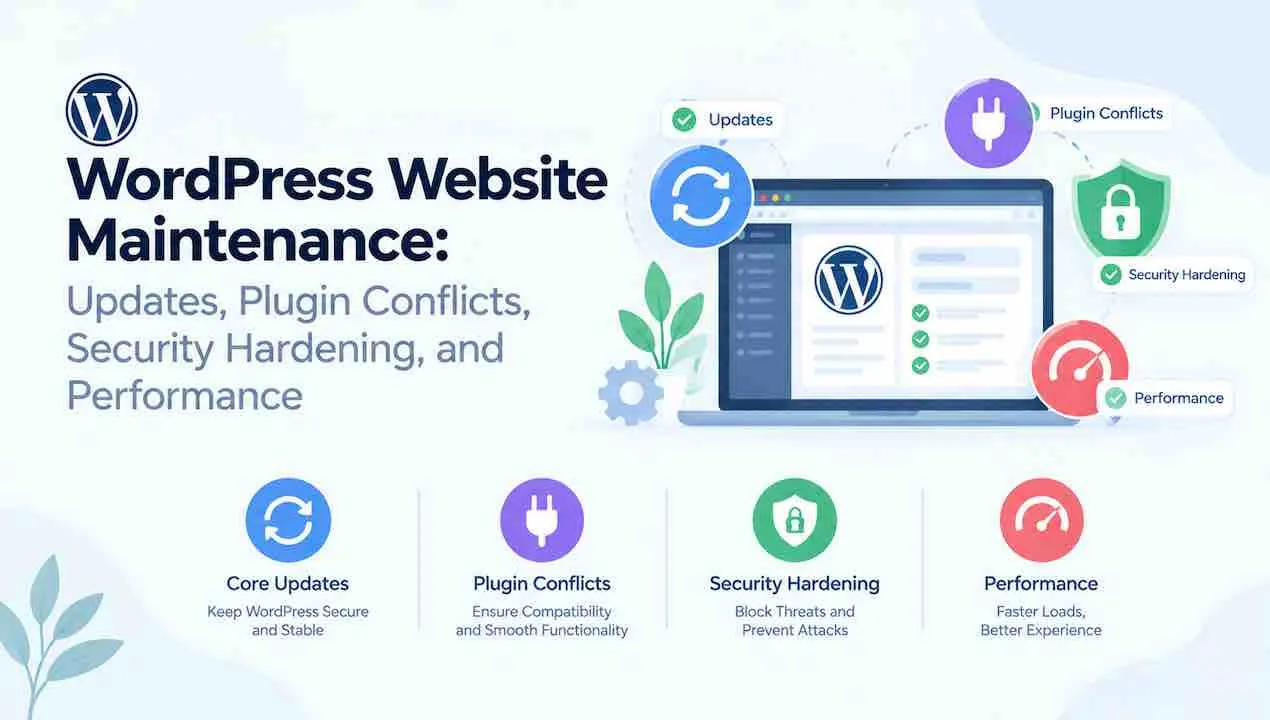
WordPress website maintenance covers five recurring activities. These are: updating core, plugins, and themes; resolving plugin conflicts; hardening security; optimizing Core Web Vitals performance; and maintaining a tested backup and restore system. Patchstack’s 2026 WordPress Security Report identified 11,334 new vulnerabilities in the WordPress ecosystem. That is a 42% increase year-on-year. 91% of those vulnerabilities came from plugins. A WordPress site without an active maintenance process is not a stable asset. It is an accumulating liability.
This guide covers every maintenance discipline in full. Each section includes the exact process, the recommended tools, and the correct cadence. These reflect how professional maintenance teams operate on business WordPress sites. The website maintenance services pillar resource expands this into a broader context. It covers all site types, not just WordPress.
Why WordPress Website Maintenance Cannot Be Skipped
WordPress maintenance is not optional when a business depends on its website for leads, revenue, or operations. An unmaintained WordPress site experiences three compounding failure modes. Security vulnerabilities accumulate from every unpatched plugin. Performance degrades from database bloat and stale caches. Compatibility breaks as PHP versions advance and plugins fall out of sync.
The Real Cost of Skipping WordPress Maintenance
Businesses that skip WordPress maintenance face predictable consequences. Outdated plugins accounted for 50% of all hacked WordPress sites in Sucuri’s annual report. A single security incident costs an average of $6,500 in recovery time, developer fees, and lost revenue. That figure comes from Hacked Website Report data. That figure excludes reputational damage and SEO penalties from Google’s Safe Browsing flagging. A professional website maintenance services contract costs a fraction of that recovery expense on an annual basis.
WordPress Maintenance Task Cadence
| Task | Frequency | Risk of Skipping | Tool |
|---|---|---|---|
| Plugin updates | Weekly | Security vulnerability exploitation | WordPress Dashboard, ManageWP |
| WordPress core minor updates | As released (enable auto-update) | Security patch gap | WordPress auto-updates |
| WordPress core major updates | Manually, after staging test | Plugin incompatibility on live site | Staging environment |
| Full site backup | Daily (automated) | No recovery point after incident | UpdraftPlus, BlogVault |
| Uptime monitoring | Continuous (every 5 minutes) | Hours of undetected downtime | UptimeRobot, Pingdom |
| Malware scan | Daily | Extended infection before detection | Wordfence, MalCare, Sucuri |
| Database optimization | Monthly | Query slowdown and storage waste | WP-Optimize, WP-CLI |
| Core Web Vitals audit | Monthly | Ranking drop from LCP or INP regression | Google PageSpeed Insights, GTmetrix |
| Broken link scan | Monthly | User experience and SEO signal degradation | Broken Link Checker, Screaming Frog |
| PHP version check | Quarterly | End-of-life PHP running vulnerable code | WordPress Site Health, cPanel |
WordPress Core, Plugin, and Theme Update Management
Update management is the single highest-impact WordPress maintenance activity. Unpatched software accounted for 91% of known vulnerabilities in the Patchstack 2026 report. The question is not whether to update. It is how to update without causing downtime, data loss, or plugin conflicts on a live business site.
The Correct Update Deployment Sequence
Always update in this order to minimize conflict risk:
- Back up the full site, including all files and the database, before any update begins
- Update WordPress core minor versions first (security patches, e.g., 6.7.1 to 6.7.2)
- Update plugins one at a time, not in bulk batches
- Test site functionality after each plugin update before proceeding
- Update the active theme last
- Clear all caches after the full update sequence completes
- Run a visual regression check on key pages: homepage, contact page, and checkout if applicable
Never update all plugins simultaneously. A bulk update makes it impossible to identify which plugin caused a conflict when something breaks. One update at a time is slower. It is also the only approach that keeps a conflict diagnosis tractable. Read the WordPress plugin update failures guide before updating. It covers the most common failure patterns in detail.
Testing Updates on a Staging Site Before Going Live
A staging site is a private copy of your WordPress site on a separate URL or subdomain. Every major core update should be tested on staging first. Every unfamiliar plugin update follows the same rule. The staging workflow runs in five steps:
- Clone the live site to staging using your host’s staging tool or a plugin like WP Staging
- Apply the updates on staging
- Test every page template, form submission, checkout flow, and user login path
- Confirm no JavaScript console errors appear in your browser developer tools
- Push the same updates to live only after staging passes all tests
Minor vs Major WordPress Core Updates
Enable automatic updates for minor versions. Minor versions are security and maintenance releases (e.g., 6.7.1). They patch specific vulnerabilities. Delaying them creates an unnecessary exposure window. Major versions (e.g., 6.7 to 6.8) change core functionality. Always test these manually on staging first. Major versions sometimes introduce compatibility breaks with plugins that have not yet released a matching update. Wait 48 to 72 hours after a major release. This gives plugin developers time to release compatibility updates before you apply to production. If your site broke after a recent update, start with the slow website after update guide. It covers the exact diagnosis steps.
How to Diagnose and Fix WordPress Plugin Conflicts
A WordPress plugin conflict occurs when two or more active plugins contain incompatible code. The symptom is a broken site function, a PHP error, or a white screen after an update. Plugin conflicts are the most common cause of WordPress site failures following an update. The diagnosis process is systematic, not guesswork.
The Step by Step Plugin Conflict Diagnosis Method
- Enable WP_DEBUG in your wp-config.php file to surface the exact error message
- Deactivate all plugins simultaneously from the WordPress Dashboard or via FTP
- Reactivate your default theme temporarily if the theme may be involved
- Reactivate plugins one at a time, checking site functionality after each activation
- When the problem reappears, the last-activated plugin is either the cause or one part of a conflict pair
- Keep that plugin active and reactivate remaining plugins to identify the second conflicting plugin
- Document both plugins and their versions before contacting either developer or seeking an alternative
Plugin Dependency Chain and Compatibility Risks
Some plugins depend on other plugins to function. WooCommerce extensions require WooCommerce. Advanced Custom Fields Pro extensions require ACF Pro. Updating the dependency without updating its extensions breaks the chain. Always update the core plugin and all its official extensions together as one grouped action. Check the changelog of every update before applying it. Plugin changelogs note breaking changes explicitly. A breaking change in a dependency means you must act. Either update all dependent plugins together or lock the dependency at its current version until extensions catch up.
When a Plugin Update Breaks Your Live Site
Roll back immediately. Do not debug on the live site. Restore the pre-update backup. Take the rolled-back version to staging. Reproduce the conflict in staging where no user sees the error. The complete recovery workflow is at WordPress plugin update failures. It includes rollback steps for common hosting environments.
WordPress Security Hardening: The Complete Implementation List
WordPress security hardening is a layered process covering server configuration, application settings, authentication, and ongoing monitoring. No single plugin provides complete protection. Patchstack’s 2026 data shows 11,334 new vulnerabilities were added to the WordPress ecosystem last year. 91% came from plugins. Hardening reduces the attack surface at every layer. An unpatched vulnerability in one plugin then cannot compromise the entire site.
Server Level Security Hardening
- Set file permissions to 644 for all files and 755 for all directories
- Set wp-config.php permissions to 440 or 400 to prevent direct read access
- Disable PHP execution in the wp-content/uploads directory via .htaccess
- Keep PHP on a supported version. PHP 8.1 reached end of life in December 2025; run PHP 8.2 or 8.3 minimum
- Install a web application firewall (WAF) at server level through Cloudflare or your hosting provider
- Enable HTTPS and enforce SSL across all pages, not just checkout
- Implement a Content Security Policy (CSP) header to block cross-site scripting injection
Application Level Security Hardening
- Change the default WordPress login URL from /wp-login.php using WPS Hide Login or Solid Security
- Limit login attempts to 3 to 5 failures before temporary lockout
- Disable XML-RPC if your site does not use it. It is a common brute force attack vector
- Remove user enumeration by blocking access to author archive URLs and REST API user endpoints
- Delete all inactive plugins and themes. They carry vulnerabilities even when deactivated
- Disable file editing from the WordPress Dashboard by adding DISALLOW_FILE_EDIT to wp-config.php
- Regularly audit user accounts and remove accounts that are no longer active
Access and Authentication Hardening
Enable two-factor authentication (2FA) for all admin and editor accounts. Use Wordfence Login Security, WP 2FA, or Solid Security for 2FA implementation. As of 2026, WordPress.com and several managed hosts support passkeys as a 2FA alternative. Passkeys eliminate phishing risk entirely by tying authentication to the device rather than a password. Implement application passwords for any REST API integrations instead of sharing admin credentials. Use a role management plugin to apply the principle of least privilege. No user should have administrator access unless their workflow requires it. Full guidance on website security maintenance covers authentication and access controls across all site types.
AI-Generated Plugin Security Risk in 2026
Patchstack’s 2026 report flagged a new risk category: “vibe-coded plugins.” These plugins are generated by AI tools without proper security auditing. They appear functional but contain predictable vulnerability patterns from AI code generation. Before installing any plugin, run three checks. Confirm its presence in the WordPress Plugin Repository, its active installation count, and its last updated date. A plugin with under 1,000 installs, no repository listing, and no recent updates carries elevated unverified risk. Apply the same scrutiny to AI-recommended plugins. Any plugin without a direct WordPress.org repository link carries elevated risk.
WordPress Performance Maintenance
WordPress performance maintenance is an ongoing activity, not a one-time optimization. Google’s ranking systems use Core Web Vitals signals continuously. A site can pass LCP, INP, and CLS benchmarks today and fail them tomorrow. A single plugin update or server configuration change is enough. Monthly performance audits catch regressions before they affect rankings or user experience. The Core Web Vitals website maintenance guide covers the full technical implementation behind each metric.
Core Web Vitals Maintenance: LCP, INP, and CLS
Each Core Web Vital requires a specific maintenance action:
- LCP (Largest Contentful Paint, target under 2.5 seconds): Audit hero image file size monthly. LCP images should be served in WebP format, lazy loaded below the fold, and preloaded with a rel=”preload” tag for the above-the-fold image. A caching plugin change or theme update can remove the preload tag without warning.
- INP (Interaction to Next Paint, target under 200 milliseconds): Audit JavaScript execution on key user interaction points. Forms, menus, and modal triggers are the most common INP failure points after plugin updates that add new JavaScript to these elements.
- CLS (Cumulative Layout Shift, target under 0.1): Audit ad placements, font loading, and dynamically injected content after every plugin update that touches the frontend. A plugin that adds a banner or notification without reserved space causes CLS spikes.
WordPress Database Maintenance and Optimization
WordPress databases accumulate waste. Post revisions, transients, spam comments, orphaned metadata, and deleted plugin tables all occupy database space. This slows query response times. Run these database maintenance tasks monthly:
- Delete post revisions older than 30 days. Set the AUTOSAVE_INTERVAL and WP_POST_REVISIONS constants in wp-config.php to limit future accumulation
- Clear expired transients using WP-Optimize or the following WP-CLI command:
wp transient delete --expired - Optimize all database tables using the WP-Optimize plugin or WP-CLI:
wp db optimize - Remove orphaned plugin tables from deleted plugins that left database debris
- Clear spam and trash items from comments and posts
Caching and CDN Maintenance
Caching plugins require maintenance after every content update, theme change, and plugin update. Stale cache causes users to see outdated content. It also causes PHP errors when cached files reference deleted plugin assets.
- Flush the full site cache after every WordPress core, plugin, or theme update
- Purge CDN cache after flushing local cache. Cloudflare, BunnyCDN, and Fastly all have WordPress plugins for one-click purge
- Review your caching plugin’s exclusion rules quarterly. Some pages must never be cached: checkout pages, account pages, and any page with personalized content
- Test cache behavior after every major update by visiting key pages in an incognito browser window to confirm fresh content loads
WordPress Backup Strategy for Business Sites
A WordPress backup strategy is only as reliable as its last tested restore. A backup that cannot be restored is not a backup. It is false confidence. Business WordPress sites require daily automated backups in at least two locations. Store one on-site in your hosting account and one off-site on Google Drive, Amazon S3, or Dropbox. Manual backups taken only before updates are insufficient. A server failure between manual backups destroys all work done since the last snapshot.
The full backup architecture for business sites is covered in detail at website backup strategy. For WordPress specifically, apply these minimum standards:
- Back up files and database together, not separately. They must be from the same point in time to restore cleanly
- Retain 30 days of daily backups minimum. Malware infections are sometimes discovered weeks after the initial compromise
- Test the restore process quarterly. A restore test should produce a working copy of the site in under 30 minutes
- Store backups in a location independent of your web host. A compromised or suspended hosting account also deletes any backups stored only on that host
- Use UpdraftPlus, BlogVault, or your host’s native backup system with remote storage enabled
WordPress Monitoring Setup
Monitoring detects problems before users or search engines report them. A site down for four hours loses revenue and Googlebot crawl budget simultaneously. Three monitoring systems are required for a professionally maintained WordPress site. These are uptime monitoring, security monitoring, and performance monitoring.
Uptime Monitoring
Uptime monitoring checks your site’s availability at regular intervals and sends an alert when it goes down. The full setup guide is at website uptime monitoring. For WordPress sites, configure monitoring at 5-minute check intervals. Use UptimeRobot (free), Pingdom, or Better Uptime. Set alerts to go to email and SMS simultaneously. A 5-minute interval means the maximum undetected downtime is 5 minutes. A 30-minute interval means up to 30 minutes of undetected downtime. You lose traffic and Googlebot crawl budget before any alert fires.
Security and Vulnerability Monitoring
Security monitoring has two components. Active scanning looks for malware, modified core files, and injected scripts. Passive monitoring watches for known vulnerabilities in your installed plugins and themes. It checks against the WPScan and Patchstack vulnerability databases.
- Install Wordfence or MalCare for daily malware scanning and real-time firewall monitoring
- Connect your site to Patchstack’s free tier for vulnerability database alerts on your specific plugin list
- Configure email alerts for any new vulnerability disclosure affecting a plugin you have installed
- Review WordPress Site Health under Tools in the Dashboard weekly. It surfaces outdated PHP, insecure settings, and plugin issues automatically
If your site is already compromised, go to the website hacked recovery guide immediately. It covers the full cleanup and post-incident hardening steps.
Performance Monitoring
Website performance monitoring tracks response times, Core Web Vitals field data, and page speed over time. A sudden performance drop often appears in monitoring data before it appears in Search Console rankings data. Set up Google Search Console to receive Core Web Vitals alerts. Use GTmetrix’s monitoring feature for weekly performance tracking. Set email alerts to fire when LCP or CLS scores cross defined thresholds.
Monthly WordPress Maintenance Schedule
A structured monthly schedule prevents maintenance tasks from being skipped under workload pressure. Follow this schedule consistently. Every skipped week of plugin updates adds to the vulnerability exposure window.
| Timing | Tasks |
|---|---|
| Every week | Review and apply plugin updates one at a time. Confirm backup ran successfully. Review uptime monitoring alerts. Clear caches after updates. |
| Every 2 weeks | Run full malware scan. Check WordPress Site Health dashboard. Review user accounts for inactive or unauthorized access. Review error logs for PHP warnings. |
| Monthly | Apply WordPress core major update if one is available and staging-tested. Optimize database. Run Core Web Vitals audit. Scan for broken links. Review Search Console for crawl errors and Core Web Vitals field data. |
| Quarterly | Test backup restore process. Review PHP version. Audit all installed plugins and remove inactive ones. Audit user roles and remove accounts that no longer need access. Review SSL certificate expiry dates. Update any hardcoded media or scripts to current CDN paths. |
The website maintenance checklist resource has the complete task list with checkboxes. It covers WordPress-specific and platform-agnostic tasks together.
DIY vs Professional WordPress Maintenance
DIY WordPress maintenance works for simple sites with technical owners. They must commit consistent weekly time to the process without skipping. Professional maintenance is the correct choice for business sites. Downtime, a security breach, or a performance failure directly costs revenue on those sites.
DIY maintenance requires four practical capabilities. You need FTP access for emergency file recovery. You need basic PHP knowledge to read error logs. You need familiarity with WordPress core files to diagnose conflicts. You also need time to run the monthly schedule every week without skipping. One missed week of plugin updates during a high-vulnerability period can be the gap an attack exploits.
Professional website maintenance services eliminate that gap. A professional team runs staged updates and monitors uptime and security continuously. They diagnose conflicts before production and provide a guaranteed response time when something fails. The DIY vs professional website maintenance guide has a detailed comparison of both approaches. Its decision framework is based on site complexity and business risk tolerance.
The what website maintenance includes guide breaks down every professional deliverable. It uses standard industry definitions throughout.
FAQs: WordPress Website Maintenance
These are the most common questions about WordPress website maintenance for business sites.
WordPress plugins should be reviewed and updated weekly. WordPress core minor updates should be applied as soon as they release, ideally with auto-updates enabled. Core major updates require staging testing before production deployment. Full database optimization and Core Web Vitals audits run monthly. Backup restore testing and PHP version review run quarterly. Maintenance is not a single monthly event. It is a recurring weekly process with different tasks running at different intervals.
Plugin updates break sites when a new version introduces conflicting code. The conflict can be with another active plugin, the current theme, or the WordPress core version. This happens most often when the plugin developer tests only against the latest WordPress version. They do not test every possible plugin combination. Updating plugins one at a time on a staging site before applying to production eliminates this risk. The full diagnosis and rollback process is covered at WordPress plugin update failures.
Common signs of a WordPress compromise include five patterns. These are: Google Safe Browsing warnings, unexpected redirects to unrelated sites, new unknown admin users, strange content in pages, and hosting suspension notices. A daily malware scan using Wordfence or MalCare catches infections before they reach the visible symptoms stage. If your site is already compromised, the step-by-step recovery process is at website hacked recovery.
WordPress maintenance directly affects rankings through two channels: Core Web Vitals performance and technical SEO health. A site with LCP above 4 seconds receives a ranking signal disadvantage. Competitor pages that pass Core Web Vitals benchmarks rank above it as a result. Broken internal links, crawl errors from plugin conflicts, and expired SSL certificates all surface in Google Search Console. They appear as technical SEO problems requiring attention. Monthly Core Web Vitals audits and technical SEO maintenance routines keep these signals clean.
Enable auto-updates only for plugins with a strong developer track record. Confirm a pre-update backup runs automatically before any auto-update fires on the production site. Auto-updates for plugins remove the human staging-test step. A problematic auto-update at 3am goes undetected until business hours. The safer approach is weekly manual updates with a staging test. Enable auto-updates only for security-focused plugins like Wordfence and Solid Security. For those plugins, patching speed outweighs the conflict risk.