



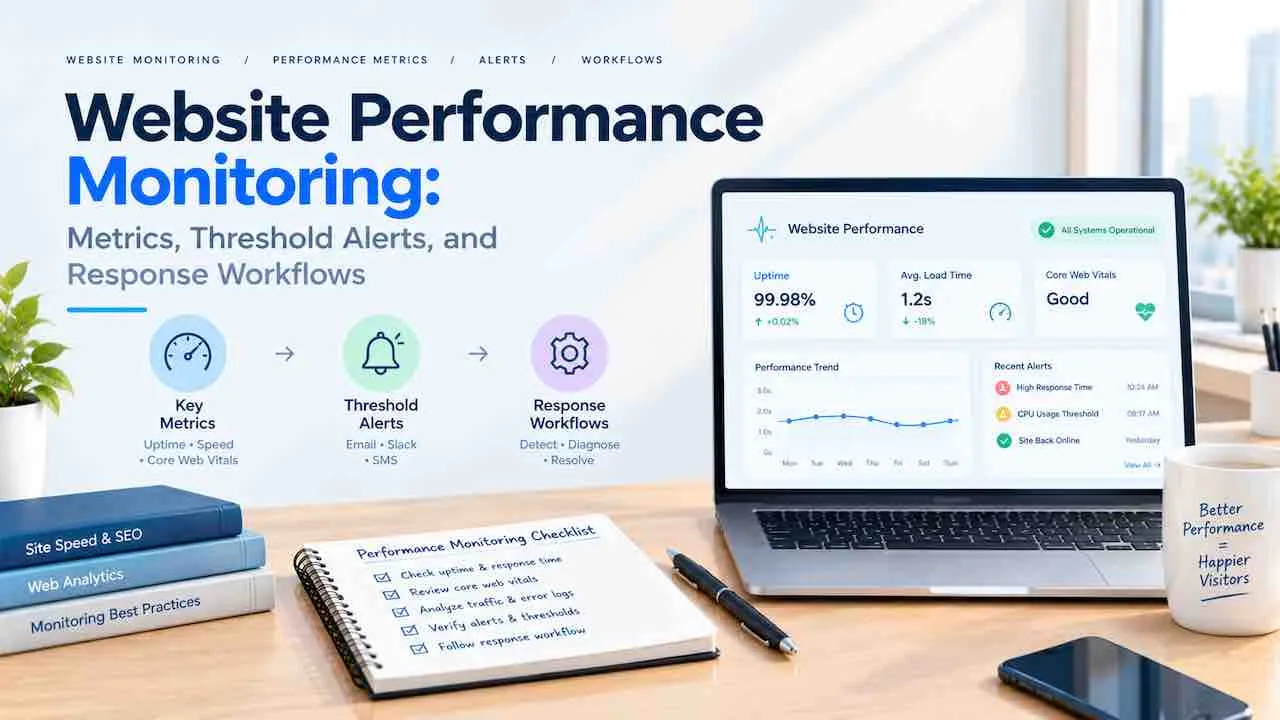
Website performance monitoring tracks speed, availability, and user experience metrics so you catch degradation before visitors do. A monitored site fixes issues in minutes. An unmonitored site finds problems through lost revenue, ranking drops, or customer complaints. QuickDigital has delivered website maintenance and monitoring services since 2014. Every major incident we resolved had one root cause. No monitoring was active when the problem started.
This guide covers the exact metrics to track and threshold values to configure. The incident response workflow fixes problems before they reach ranking or revenue damage.
What Website Performance Monitoring Measures
Website performance monitoring measures 4 signal categories: speed, availability, user experience, and backend health. Each category produces different alert types. Each requires different response actions when thresholds are crossed. Site performance tracking without all 4 categories leaves blind spots that real incidents exploit.
Page Speed and Load Time Metrics
Page load time monitoring starts with 4 core speed metrics that determine whether users stay or leave. Target under 3 seconds on mobile. Target under 2 seconds on desktop for total page load time.
- Time to First Byte (TTFB). Time between the browser request and the first byte from the server. Target under 200ms. TTFB above 600ms points to a server, hosting, or CDN problem, not a frontend code issue.
- First Contentful Paint (FCP). Time until the first visible element renders on screen. Target under 1.8 seconds. FCP delays signal render-blocking scripts or oversized CSS files.
- Largest Contentful Paint (LCP). Time until the largest visible element renders. Target under 2.5 seconds. LCP is a Core Web Vitals metric and a confirmed Google ranking signal.
- Total page load time. Time until all page resources finish loading. Target under 3 seconds. Pages loading past 5 seconds lose over 60% of mobile visitors before rendering completes.
Website speed monitoring on these 4 metrics shows the full user-perceived load sequence. A fast TTFB with a slow LCP points to a frontend problem. A slow TTFB points to a server problem. The metrics direct you to the fix layer before you run a single diagnostic tool.
Core Web Vitals Monitoring
Core Web Vitals monitoring tracks Google’s 3 official user experience metrics that directly affect search rankings. Each metric has defined Good, Needs Improvement, and Poor thresholds used in Google’s page experience ranking signal.
| Metric | Good | Needs Improvement | Poor | What It Measures |
|---|---|---|---|---|
| LCP | Under 2.5s | 2.5s to 4s | Above 4s | Loading speed of the largest visible element |
| INP | Under 200ms | 200ms to 500ms | Above 500ms | Responsiveness to user interactions |
| CLS | Under 0.1 | 0.1 to 0.25 | Above 0.25 | Visual stability during and after load |
LCP failures trace to unoptimised hero images or slow server response time. Interaction to next paint (INP) failures trace to heavy JavaScript blocking the main thread. Cumulative layout shift (CLS) failures trace to ads, embeds, or images loading without reserved space. Core web vitals website maintenance runs a different fix sequence for each metric. Identifying the specific failure type before applying fixes cuts resolution time by hours.
Server Response Time and Backend Health
Backend performance monitoring covers server-side signals that contaminate every other speed metric when they degrade. A slow server response time adds directly to every frontend metric on the page. These are the key backend signals in any web performance monitoring program:
- TTFB under 200ms. Above 600ms requires investigation at the hosting or CDN layer, not the frontend code layer.
- Server error rate (5xx). Track as a percentage of total requests per 5-minute window. Any sustained rate above 0.1% needs root cause analysis immediately.
- Database query time. Long-running queries cause slow TTFB on dynamic sites. Monitor average query execution time at the database level, separate from HTTP response time.
- CDN cache hit rate. A CDN cache hit rate below 80% sends most requests to your origin server directly. A healthy cache hit rate slashes website response time for global visitors.
Website Availability Monitoring
Website availability monitoring confirms your site is reachable from multiple locations worldwide. Internal team members with a cached browser often miss outages affecting real external visitors. Website uptime monitoring runs checks from multiple global locations every 1 to 5 minutes. It fires an alert the moment any check fails.
Key availability metrics to track:
- Uptime percentage. 99.9% allows 8.7 hours of downtime per year. 99.99% allows 52 minutes. Set your uptime SLA target before configuring alert thresholds.
- Downtime duration. How long each outage lasts before resolution is applied.
- Downtime frequency. More than 2 unplanned incidents per month signals a hosting stability problem requiring a provider review.
- Geographic availability. CDN or DNS issues affect specific geographic zones. Some visitors may be blocked while others are not.
Real User Monitoring vs Synthetic Monitoring
Real user monitoring (RUM) and synthetic monitoring solve different problems in web performance monitoring. A complete monitoring setup uses both together. Using only one leaves a gap that real incidents expose at the worst moment.
Real User Monitoring (RUM) captures performance data from actual visitors using your site. It shows how real users on real devices and networks experience each page. RUM data comes from the Chrome User Experience Report (CrUX) and JavaScript tracking embedded in page markup. RUM is accurate but reactive. It only reports on traffic that has already occurred.
Synthetic monitoring runs automated test scripts from controlled environments at fixed intervals. It simulates visits from specific locations every 1, 5, or 15 minutes. Synthetic monitoring is proactive. It fires a performance alert when a test fails at any hour, even at 3am with zero live visitors.
| Feature | Real User Monitoring | Synthetic Monitoring |
|---|---|---|
| Data source | Actual site visitors | Automated test scripts |
| Coverage window | Only while traffic flows | 24/7, including zero-traffic periods |
| Location data | Reflects actual visitor locations | Tests from chosen global nodes |
| Metric type | Field data (CrUX) | Lab data (controlled conditions) |
| Best use | Understanding real visitor experience | Catching outages and regressions |
| Alert speed | Delayed (requires traffic volume) | Instant (fires on test failure) |
Synthetic monitoring handles uptime alerts and performance regression detection. Real user monitoring handles understanding actual visitor experience across device types and connection speeds. Together, both give a website monitoring service the complete picture to act proactively rather than reactively.
Website Performance Monitoring Tools
Website performance monitoring tools range from free audit options to enterprise platforms with real-time alerting. The right tool depends on site size, team technical capacity, and alert speed requirements.
Free Website Performance Monitoring Tools
- Google PageSpeed Insights. Combines Lighthouse lab data with Chrome User Experience Report (CrUX) field data for any URL. Free. Returns Core Web Vitals scores with specific fix recommendations. No continuous monitoring or alerting: manual on-demand tests only.
- Google Search Console. Reports Core Web Vitals status for all indexed pages using 28-day rolling field data. Free. Groups Poor and Needs Improvement pages by issue type. Data refreshes every 28 days, not in real time.
- WebPageTest. Advanced performance testing with waterfall charts and multi-location testing. Free. Identifies specific resource-level bottlenecks at millisecond precision. Manual tests only with no alerting function.
- Lighthouse CI. Automates Lighthouse tests inside a CI/CD pipeline. Free. Catches performance regressions and enforces a performance budget before code reaches production. Requires developer configuration.
- UptimeRobot. Monitors site uptime every 5 minutes from multiple global locations. Free plan covers 50 monitors with email and Slack alerts. Tests HTTP status codes only. Does not measure page load time or Core Web Vitals.
Paid Website Performance Monitoring Tools
- GTmetrix. Continuous synthetic monitoring, scheduled tests, and configurable alert rules. Paid plans start from around $10 per month. Tests from 22 global locations with detailed waterfall analysis. Strong for small to mid-size sites needing real-time performance alerts.
- Pingdom. Synthetic uptime and performance monitoring with RUM available as a paid add-on. Strong alert configuration with on-call routing and escalation policies for team response workflows.
- New Relic. Full-stack APM (application performance monitoring) covering browser monitoring, backend tracing, and infrastructure health. Used by engineering teams managing complex application stacks with multiple service dependencies.
- Datadog. Enterprise-grade APM and infrastructure monitoring with distributed tracing and log correlation. Best for cloud-hosted applications with multiple interconnected services. Highly customisable performance monitoring dashboard configuration.
- Dynatrace. AI-powered APM with automatic root cause analysis. Surfaces anomalies across frontend, backend, and infrastructure in a unified dashboard automatically.
| Tool | Monitoring Type | Alerting | Free Tier | Best For |
|---|---|---|---|---|
| Google PageSpeed Insights | Lab + Field | No | Yes | Manual audits and spot fixes |
| Google Search Console | Field (CrUX) | Weekly email | Yes | Core Web Vitals overview |
| UptimeRobot | Uptime only | Yes | Yes (50 monitors) | Basic uptime alerting |
| Lighthouse CI | Lab (CI pipeline) | Build gate | Yes | Pre-deployment regression prevention |
| WebPageTest | Lab (manual) | No | Yes | Deep-dive diagnostics |
| GTmetrix | Synthetic + RUM | Yes | Limited | Small to mid-size sites |
| Pingdom | Synthetic + RUM | Yes | No | Growing business sites |
| New Relic | APM + Browser | Yes | Limited | Developer-managed applications |
| Datadog | APM + Infrastructure | Yes | No | Cloud-hosted apps |
| Dynatrace | AI-powered APM | Yes | No | Enterprise-scale sites |
AI-powered website monitoring tools use anomaly detection to flag unusual metric patterns automatically. This cuts false-positive alert rates that rigid single-threshold rules consistently produce at scale.
How to Set Performance Threshold Alerts
Performance threshold alerts fire when a metric crosses a defined value. Getting those values right separates useful monitoring from alert noise. Thresholds set too tight fire on every traffic spike. Thresholds set too loose miss real degradation events entirely.
Recommended Alert Thresholds by Metric
Base starting thresholds on Google’s Core Web Vitals ranges and industry benchmarks. Adjust after 30 days of baseline data collection specific to your site.
| Metric | Warning Threshold | Critical Threshold | Standard Source |
|---|---|---|---|
| TTFB | Above 400ms | Above 600ms | Google Web Vitals |
| LCP | Above 2.5 seconds | Above 4 seconds | Core Web Vitals |
| INP | Above 200ms | Above 500ms | Core Web Vitals |
| CLS | Above 0.1 | Above 0.25 | Core Web Vitals |
| Total page load time | Above 3 seconds | Above 5 seconds | Industry standard |
| Uptime | Any downtime event | Downtime over 5 minutes | Uptime SLA-dependent |
| Server error rate (5xx) | Above 0.5% of requests | Above 2% of requests | Engineering baseline |
| CDN cache hit rate | Below 80% | Below 60% | CDN vendor guidance |
Alert Types and Delivery Channels
Three website performance alert types serve different response needs in a monitoring program:
- Threshold alerts. Fire when a single metric crosses a fixed value. Simple to configure. More prone to false positives from one-off traffic spikes or single-location test failures.
- Anomaly detection alerts. Fire when a metric deviates sharply from its historical baseline. Fewer false positives than fixed thresholds. Requires sufficient historical data before the model becomes reliable.
- Composite alerts. Fire only when multiple metrics degrade at the same time. Reduces alert noise by confirming a real problem rather than a transient single-metric spike.
Route website performance alerts through multiple channels by severity level. Email works for non-urgent warning notifications. Slack or Microsoft Teams works for team-visible issues needing awareness without immediate action. PagerDuty or Opsgenie handles on-call escalation when critical thresholds fire outside business hours. Define escalation clearly: alert the responsible developer first, then the team lead, then the account owner for revenue-impacting events.
Setting Your Performance Baseline
Alert thresholds calibrated against your site’s performance baseline produce far fewer false positives than generic default values. A new monitoring setup has no baseline data. Spend 30 days collecting data before locking in final values.
- Run continuous synthetic monitoring for 30 days from your primary target geography.
- Export p50 (median), p75, and p95 latency values for each tracked metric.
- Set warning thresholds at 1.5 times your p75 baseline value for each metric.
- Set critical thresholds at 1.5 times your p95 baseline value for each metric.
- Review and adjust thresholds quarterly as site content and traffic patterns change.
Keeping a performance baseline document updated quarterly also speeds up regression detection. When a new plugin update drops your LCP by 800ms, the documented baseline confirms the regression immediately. Without it, you need to research whether the new number is unusual.
Performance Incident Response Workflow
A defined performance incident response workflow cuts time-to-resolution from hours to minutes. It removes diagnostic guesswork after an alert fires. Sites without a workflow spend the first 20 minutes deciding who should look and what to run. Sites with a defined workflow start fixing in the first 2 minutes.
Step 1: Triage the Alert
Confirm the alert represents a real incident rather than a false positive. A single check failure from one monitoring location often indicates a transient network issue. An alert confirmed from 3 or more global monitoring nodes is a real performance incident. Confirm whether the alert remains active before escalating the response team.
Step 2: Scope the Impact
Find how many pages and users the degradation currently affects. Review Google Search Console for crawl error spikes in the last hour. Review server access logs for elevated 5xx error rates in the last 15 minutes. Review Google Analytics for traffic drops on affected pages in real time. A traffic drop combined with a spike in bounce rate in Google Analytics on the same pages confirms the performance problem is affecting real visitor behavior. It rules out a false positive from synthetic monitoring alone.
Step 3: Run a Diagnostic Test
Run a WebPageTest or GTmetrix test on the affected URL immediately. Compare the resulting waterfall chart against your baseline waterfall from the prior week. The waterfall reveals exactly which resource first caused the slowdown. Common root causes found at this step:
- Recent plugin or theme update: A newly added render-blocking script or modified CSS file changing the critical render path.
- Third-party script timeout: A chat widget, analytics tag, or ad script timing out and blocking browser rendering.
- Database query slowdown: A new post or product listing triggering an inefficient query at the database layer.
- CDN cache miss spike: A recent cache flush sending all requests directly to the origin server simultaneously.
- Server resource exhaustion: CPU or memory spiking from a traffic surge or a runaway background process.
Step 4: Apply the Fix and Verify
Apply the fix to a staging environment first when time permits. For active outages affecting live revenue, fix directly on production and verify immediately after. After applying any fix, rerun the WebPageTest from the same location and connection profile used in Step 3. Confirm the affected metric returned to baseline values. Monitor for 15 minutes before closing the incident. Improving page load speed after a performance incident works fastest when you target the exact resource identified in the waterfall. Running a broad site-wide optimisation pass at the same time delays resolution.
Step 5: Document the Incident
Every performance incident needs a short post-incident record. Include: what happened, when it started, what caused it, what fixed it, and what prevents recurrence. A website backup strategy with pre-deployment snapshots gives a rollback option when a plugin update or code change caused the degradation. Rolling back is often faster than diagnosing and patching the root cause on a live production system.
Website Performance Monitoring for SEO
Website performance monitoring protects search rankings by catching Core Web Vitals failures before they accumulate into sustained ranking damage. A page scoring Poor on any Core Web Vitals metric faces a ranking disadvantage against comparable pages that pass all 3. The disadvantage compounds over time as Google continues processing page experience data for the affected URLs.
3 SEO-critical performance signals to monitor continuously:
- Core Web Vitals (LCP, INP, CLS). Google uses these as ranking signals. Monitor all 3 via Google Search Console’s Core Web Vitals report for 28-day field data. Use synthetic monitoring for same-day regression detection after deployments.
- Mobile page speed. Google crawls primarily on mobile. A mobile LCP above 4 seconds earns a Poor rating. This negatively affects rankings in mobile search results where most organic traffic now originates.
- TTFB at scale. A server responding above 600ms reduces Googlebot crawl efficiency. Googlebot crawls fewer pages per session. New and updated content takes longer to reach the index.
Technical SEO maintenance includes performance monitoring as a recurring monthly task. Performance problems that go unmonitored drain rankings over months before showing up in Google Search Console. A plugin update dropping a Lighthouse performance score from 90 to 40 causes no immediate ranking change. The ranking impact arrives weeks later when Google reprocesses page experience signals for affected pages.
Website Performance Monitoring and Conversion Rates
Every 1-second increase in page load time reduces conversions by approximately 7%, making performance monitoring a direct revenue protection mechanism. A 3-second page load loses 53% of mobile visitors before the page renders. This is a measurable revenue leak. Continuous monitoring detects it as soon as load time crosses a defined threshold.
Conversion-critical performance signals to monitor on high-intent pages:
- LCP on landing pages. LCP above 2.5 seconds on a landing page reduces return on ad spend for every paid campaign pointing to that URL. Fix it before optimising ad copy or targeting.
- Time to interactive (TTI). How quickly forms and CTAs become functional after visual render. A form that appears but cannot submit creates invisible lead loss that standard analytics never records.
- Total load time on checkout flows. Each additional second in a purchase or sign-up sequence increases abandonment at a measurable rate per step.
Landing page optimization that excludes performance data misses the biggest conversion improvement available. A page loading in 5 seconds and converting at 2% will outperform most copy and design changes once load time drops under 2 seconds. Conversion rate optimization testing on a slow page produces unreliable results. Load time affects engagement metrics independently of any copy or design variable being tested.
Who Should Handle Website Performance Monitoring
The right approach to site performance tracking depends on team technical depth, site revenue dependence, and response time requirements. Three operating models cover most business situations.
In-house monitoring: Suits sites with an active developer managing the codebase. Requires paid monitoring tools, alert routing setup, and a defined escalation path. Works when the developer has time to investigate and fix performance issues within your response SLA.
Managed website monitoring service: Suits sites where the owner or marketing team lacks technical depth to diagnose and fix performance incidents. A managed service monitors, alerts, and resolves issues without involving your internal team. The DIY vs professional website maintenance choice comes down to one question: who responds at 2am when a critical alert fires?
Hybrid model: Suits teams with content managers and marketers but no backend developer. Internal teams handle content-related performance tasks like image compression reviews and plugin audits. An external agency handles server configuration, CDN optimisation, and Core Web Vitals remediation. This model splits cost while maintaining technical coverage for backend failures.
Professional performance monitoring typically runs $100 to $400 per month for small to mid-size sites. The full website maintenance cost including performance monitoring is consistently lower than the revenue impact of one undetected performance incident lasting 4 hours. The actual cost of website downtime per hour rarely falls below $500 for a site generating direct online transactions.
Stop Finding Performance Problems After Users Do.
QuickDigital sets up continuous performance monitoring, threshold alerts, and incident response workflows for your site. Problems get fixed before rankings or revenue are affected.
Get a Free Monitoring AuditWordPress Website Performance Monitoring
WordPress performance monitoring covers 3 layers: the application, the hosting server stack, and the CDN layer. Plugin-heavy WordPress sites carry the most performance variability. Each plugin update can change load time, database query count, and PHP memory consumption simultaneously.
5 WordPress-specific performance signals to monitor continuously:
- Database query count per page load. Above 50 queries per page indicates inefficient plugin architecture. Target under 30 for most site types. Query Monitor, a free WordPress plugin, makes this visible per page.
- Plugin-generated HTTP requests. Each plugin loading external scripts adds a network round-trip per page load. Count and trend total external HTTP requests monthly using WebPageTest or GTmetrix.
- PHP memory usage. WordPress memory exhaustion causes 500 errors that uptime monitoring records as downtime. Monitor PHP memory consumption against your configured wp-memory-limit value monthly.
- Admin dashboard load time. A slow WordPress admin dashboard signals database or hosting issues below the frontend layer. Admin performance is a backend health signal independent of frontend caching.
- WordPress cron job timing. Cron jobs running during peak traffic hours create unexpected server load spikes. Monitor cron execution timing alongside traffic patterns to identify scheduling conflicts.
Website security maintenance and performance monitoring overlap critically on WordPress sites. A malware injection adding external scripts causes immediate performance degradation across all pages. Performance monitoring catches this pattern even when scheduled security scans run on a 24-hour delay.
Website Performance Monitoring Reporting
A website performance monitoring report converts raw metric data into actionable decisions stakeholders can act on. Monthly website performance reporting, paired with maintenance data, gives decision-makers the evidence needed to budget for fixes. It also measures the return on past infrastructure investments. Read the full website maintenance reporting guide for the complete report structure.
A complete monthly performance monitoring report covers:
- Uptime percentage and total downtime duration for the reporting period. Log each incident with start time, duration, and root cause.
- Core Web Vitals status breakdown. Number of pages in Good, Needs Improvement, and Poor categories compared to the prior month.
- Page speed trend. p75 LCP and TTFB values compared to the prior month. Show direction of change, not just current state.
- Incident log. Each performance alert during the period with alert type, duration, root cause, and resolution action.
- Pages requiring action. Specific URLs with failing website performance metrics and the next-step fix for each URL.
- Performance budget status. Whether key pages remain within defined weight, request count, and load time budgets.
Reporting data feeds directly into monthly maintenance task prioritisation. A website maintenance checklist run alongside performance reports converts monitoring findings into scheduled remediation tasks rather than documented problems that accumulate in a dashboard nobody acts on.
Proactive and Continuous Performance Monitoring
Reactive performance monitoring waits for alerts to fire after a threshold is already crossed. Proactive performance monitoring catches degradation trends before they reach thresholds. The practical difference between the two is whether you prevent incidents or recover from them.
3 proactive continuous performance monitoring practices that prevent incidents:
- Trend analysis. Review 90-day trend lines for LCP and TTFB every month. A metric increasing 50ms per month crosses your warning threshold in 3 months. Fixing a trend costs 30 minutes. Recovering after a threshold breach costs hours plus any ranking or revenue impact that accumulated during the event.
- Pre-deployment performance regression testing. Run Lighthouse CI on every code change before it reaches production. A performance regression caught in the development pipeline costs 30 minutes to fix. The same regression caught in production after it has affected rankings costs days to unwind. A pre-deployment gate blocks any build reducing the Lighthouse score by more than 10 points.
- Competitive performance benchmarking. Run quarterly performance comparisons against your top 3 competitors using WebPageTest from the same test location. Competitors improving their Core Web Vitals while yours stagnate creates ranking pressure. Google’s ranking comparison is relative to competing pages, not absolute against a fixed standard.
Frontend performance monitoring and backend performance monitoring address different problem layers. Both affect the same end metric: how fast the page loads for a real user. A complete web performance monitoring program runs both layers with separate alert thresholds and escalation paths for each failure type.
User experience monitoring through real user data and performance audit results from synthetic tools combine to give the full picture. Website maintenance and AI search visibility increasingly depend on consistent technical performance as a baseline signal. AI engines surface content from fast, error-free pages at higher rates than pages with degraded performance data in their index.
Website Performance KPIs and Benchmarks
Website performance KPIs give your monitoring program a clear success definition before measurement begins. Without defined KPIs, any improvement looks like progress. Set these 6 performance KPIs before running your first monitoring report.
| KPI | Target Value | Measurement Tool | Review Frequency |
|---|---|---|---|
| Site uptime | 99.9% or above | UptimeRobot, Pingdom | Monthly |
| LCP (p75 field data) | Under 2.5 seconds | Google Search Console | Monthly |
| TTFB (median lab) | Under 200ms | GTmetrix, WebPageTest | Monthly |
| Core Web Vitals pass rate | 80%+ of pages at Good | Google Search Console | Quarterly |
| Performance incident count | 0 critical per quarter | Monitoring tool log | Quarterly |
| Lighthouse performance score | Above 85 on mobile | PageSpeed Insights | Monthly |
Website performance benchmarks vary by site type. E-commerce sites with LCP under 2 seconds on product pages see measurably higher conversion rates than comparable sites at 3 to 4 seconds. B2B lead generation sites show a strong correlation between TTFB and organic traffic volume. Slow TTFB reduces crawl efficiency, which directly affects how many pages Google indexes and ranks from the domain.
A complete website performance audit covers these KPIs alongside the threshold alert configuration and incident response workflow described throughout this guide. A site performance tracking program that combines KPIs, alerts, workflows, and reporting is fully self-reinforcing. KPIs define what matters. Alerts catch when it changes. Workflows fix the change. Reports close the loop for the next cycle.
Frequently Asked Questions
Website performance monitoring is continuous measurement of speed, availability, and user experience metrics including TTFB, LCP, INP, CLS, uptime, and Core Web Vitals. It fires threshold alerts when metrics degrade so teams fix problems before visitors notice. A complete monitoring setup pairs synthetic monitoring for proactive alerting with real user monitoring for understanding actual visitor experience.
Website performance monitoring should track TTFB (target under 200ms), LCP (under 2.5 seconds), INP (under 200ms), CLS (under 0.1), total page load time (under 3 seconds), uptime percentage, and server 5xx error rate. Core Web Vitals metrics directly affect Google search rankings. TTFB affects Googlebot crawl efficiency. Uptime percentage measures availability against your SLA target.
Real user monitoring captures performance data from actual visitors using real devices and networks; synthetic monitoring runs automated tests from controlled locations on a fixed schedule. RUM reflects genuine visitor experience but requires traffic to generate data. Synthetic monitoring fires performance alerts at any hour even with zero real visitors on the site. Use both together for complete web performance monitoring coverage.
Uptime monitoring should run every 1 to 5 minutes from multiple global locations. Page load performance tests should run every 15 to 30 minutes on critical pages. Core Web Vitals field data in Google Search Console updates on a 28-day rolling basis. For pre-deployment performance regression testing, run Lighthouse CI on every code commit before it reaches production.
Yes. Google uses Core Web Vitals (LCP, INP, CLS) as direct ranking signals through its page experience system. A page scoring Poor on any Core Web Vitals metric faces a ranking disadvantage against comparable pages that pass all 3. TTFB above 600ms also reduces Googlebot crawl efficiency, which delays indexing of new content across the full domain. Performance monitoring prevents both issues by catching degradation before it reaches ranking data.